You know the move. The Screen Time limit pops up, and your thumb hits “ignore” before your brain has even read the words. You’re far from alone in that. In the Reviews.org 2026 phone survey, the average American said they check their phone 186 times a day, and almost half said they feel addicted to it.
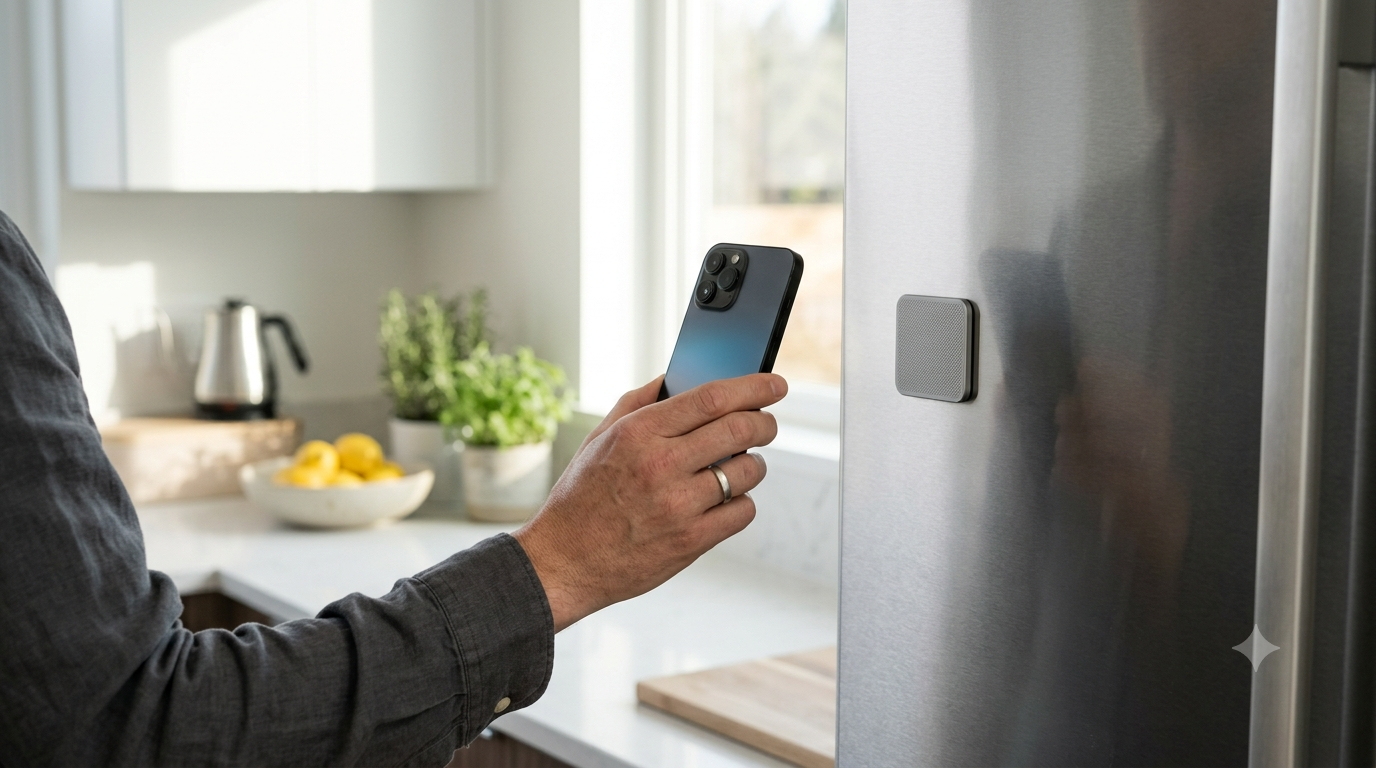
That gap between knowing and doing is exactly what the Brick phone blocker is built for. It’s a small plastic tag that locks your chosen apps until you physically tap your phone against it again. No tag, no apps.
Most reviews stop at “it works.” This one covers the part nobody seems to test: what happens when you lose the tag, travel without it, or need a blocked app in a real emergency. That’s where a physical blocker either earns its $59 or turns into a problem.
Quick Takeaways
- The Brick phone blocker is an NFC tag paired with a free app. You tap once to lock apps and tap again to unlock them.
- It costs $59 once, with no subscription.
- If you lose it, you get five Emergency Unbricks, and they don’t refill on their own.
- The Phone app can never be blocked, so you can always call for help.
- Turn on Strict Mode on day one, because without it, deleting the app is an easy way out.
- Build a travel mode before you ever leave the Brick at home.
What Is the Brick Phone Blocker?
Brick is a small square puck, roughly 5 cm on each side, with a magnet on the back so it sticks to a fridge or a metal shelf. There’s no battery and nothing to charge. It works through NFC, the same short-range tech your phone uses for tap-to-pay.
The brick app does the real work. You pick which apps to block, or you flip the logic and choose the few apps you want to keep, which locks everything else. You can save up to 10 modes, such as Work, Sleep, or Family Time, and set each one to switch on by itself on a schedule.
According to Brick’s FAQ, it works with iPhones running iOS 17 or later and with Android 12 or later. One Brick can also serve several phones, so a whole household can share a single tag.
The price is $59, paid once. The app comes included, and there are no monthly fees on top.
[IMAGE: Brick device beside a smartphone on a desk]
Why a Physical Tag Beats Willpower
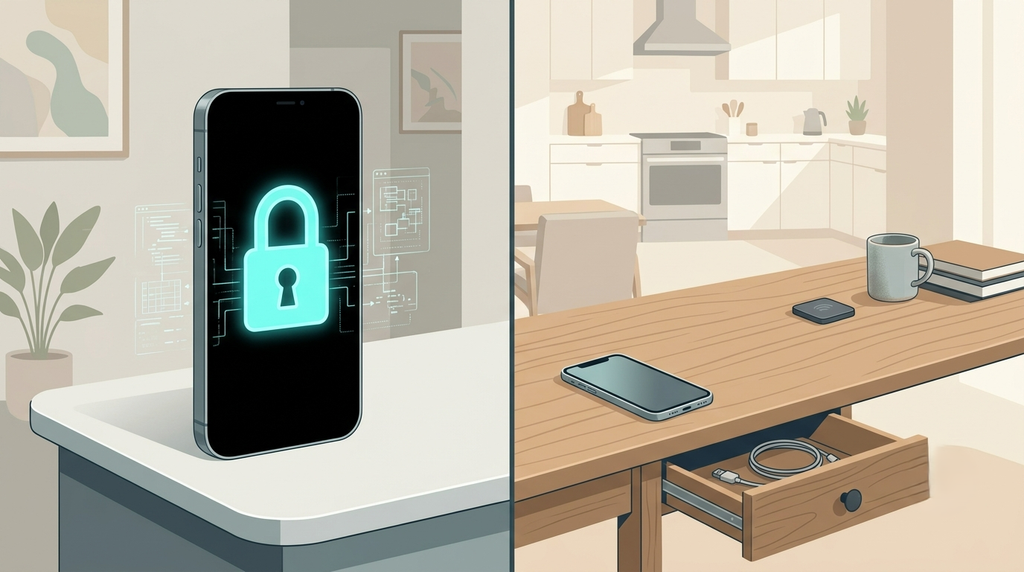
Most blockers share one quiet flaw: the lock and the key live on the same device. When the urge to scroll hits, the key is always one tap away, and the urge usually wins.
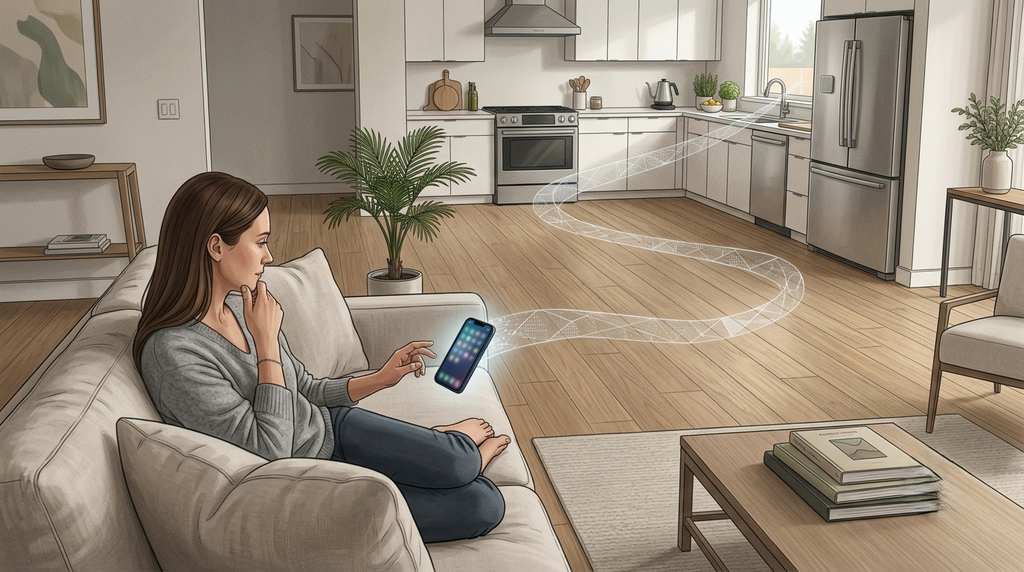
Brick moves the key somewhere else. If the tag is stuck to your fridge and you’re lying in bed, unlocking Instagram means getting up and walking to the kitchen. That short walk is the whole point, because it turns a reflex into a decision you have to make on purpose.
There’s solid research behind this. A 2023 study in PNAS tested one sec, an app that adds a brief pause and a prompt before a chosen app opens. In 36% of attempts, people closed the app after the pause, and over six weeks they tried to open those apps 37% less often.
A larger follow-up at CHI 2024 tracked more than 1,000 users for about three months. Short frictions kept cutting how often people reached for their target apps, and the openings that still happened became more intentional over time.
So friction clearly works. But look at what the researchers found helped most: the moment of choice, not the lock itself. A physical blocker gives you a much longer pause than any pop-up. What it doesn’t give you is awareness of why you reached for the phone in the first place.
That’s worth keeping in mind as you read on. Brick can stop the scroll, but it can’t tell you what the scroll was covering for. At ComfortZoneCheckin, that’s the piece we care about most: noticing the pull before you act on it.
How to Set Up Brick (Step by Step)
Setting up a Brick phone blocker takes a few minutes, and the steps below follow Brick’s own guides. Do all of them, including the ones most people skip in their excitement to tap the tag.
- Step 1: Download the app and grant access. Install the Brick app from the App Store or Google Play. On iPhone, it asks for Screen Time permission, while on Android it asks for a longer list of permissions. That’s how the blocking works, but read each prompt before you tap “allow.”
- Step 2: Build your first mode. Choose either “block these apps” or “allow only these apps.” For most people, a short allow list is the stronger option. Keep Messages, Maps, your banking app, and anything you use for work logins.
- Step 3: Turn on Strict Mode. Go to Settings in the app and toggle it on. Strict Mode stops you from deleting Brick while you’re Bricked, and it charges you an Emergency Unbrick if you switch off Screen Time access. Skip this step, and the lock becomes easy to beat.
- Step 4: Close the Settings loophole on iPhone. Brick’s support team suggests a Shortcuts automation that blocks the Settings app whenever you’re Bricked. It takes a few minutes to set up, and it’s well worth the effort.
- Step 5: Make a travel mode now. Don’t wait until you’re packing. Build an allow list with Maps, your airline app, your ride app, your wallet, and your two-factor login app.
- Step 6: Tap to Brick. Hold your phone’s NFC spot near the tag. On iPhone that’s the top edge, and on many Android phones it’s on the back. Your blocked apps lock right away, and a timer starts counting.
- Step 7: Put the Brick somewhere annoying. This is the step that decides whether Brick works for you. Testers at NBC Select had the best results when they couldn’t see the tag, for example on a fridge at the far end of the apartment or zipped inside a work bag.
- Step 8: Run a 20-minute test before you trust it. Brick yourself at home with the tag in the next room, and then try to break it. Open a blocked app, try deleting Brick, and try the Screen Time switch in Settings. Then check that every app on your allow list still opens. If anything surprises you, fix the mode now, because finding a gap on your couch is much better than finding it at an airport gate.
What Happens If You Lose the Brick?
This is the question that stops a lot of people from buying a Brick phone blocker, so let’s walk through the full chain.
- First, you use an Emergency Unbrick: Every account gets five of them in the app’s settings, and each one unlocks everything without the tag. Brick’s help page makes clear that they don’t refill automatically.
- Second, you ask for more: Once all five are gone, you fill out a form or email support. Brick says it resets them within about two business days, which is a real wait if you need an app today.
- Third, the last resort: delete the app: Removing the Brick app ends the block, but it also wipes your modes and your usage history. And if Strict Mode is on, you can’t delete the app at all while you’re Bricked.
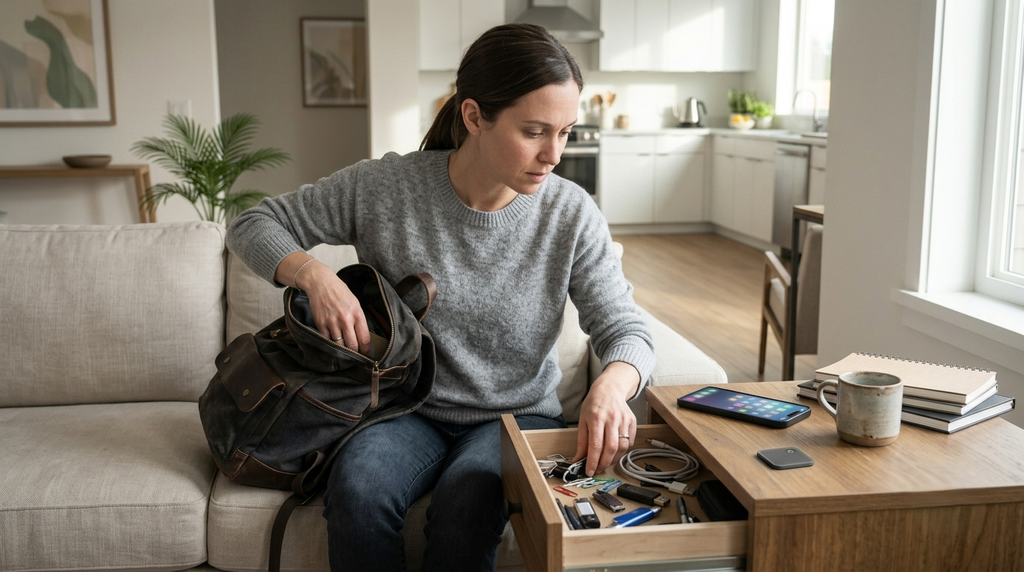
So picture the worst case. You’re Bricked with Strict Mode on, your tag is lost, and you’ve already burned all five unbricks. Now you’re waiting on support, and apart from the Phone app and whatever sits on your allow list, your blocked apps stay locked.
That sounds scary, but it’s easy to avoid with three habits:
- Keep one or two Emergency Unbricks in reserve, and treat them like a spare key rather than a snooze button.
- Leave your truly essential apps on the allow list in every single mode.
- Stick the tag somewhere it can’t fall behind furniture, like a fridge door instead of a crowded shelf.
One reviewer at Man of Many admitted she used an unbrick out of plain laziness rather than a real emergency. She argued that five is too many, because simply knowing they’re there softens the friction. That’s a fair point, and it’s exactly why saving them matters.
Travel and Emergency Workarounds
Traveling with (or without) your Brick
Every Brick phone blocker has one obvious weak spot: it stays wherever you left it. If you Brick your phone at home and then fly out, the tag is still on your fridge, and your apps stay locked until you get back.
You have a few ways around this:
- Take it with you. The tag fits in your palm and weighs almost nothing, so tuck it in a carry-on pocket rather than a checked bag.
- Switch to your travel mode before you leave. Your maps, boarding pass, and ride app stay open, while your social apps stay locked.
- Lock yourself on the go. You can start a session from anywhere by holding the virtual Brick in the app for five seconds, though you’ll still need the tag to unlock.
- Buy a second Brick. If you split your time between home and an office, a second tag costs less than a year of Opal Pro.
The real trap? Bricking your whole phone and then walking out the door. Don’t do that on a travel day.
What still works in an emergency
A Brick phone blocker can’t block everything. Per the same FAQ, iPhone users can block any app except Phone, because Apple doesn’t allow it. On Android, both the Phone app and the home screen launcher stay open.
That means you can always make a call, including to emergency services. But an emergency isn’t always a 911 call. It might be a text from your kid’s school, a fraud alert from your bank, or a ride home late at night.
That’s why the allow list matters more than the block list. Before you rely on Brick, ask yourself one question: if something went wrong tonight, which three apps would I need? Make sure those three are never locked, in any mode.
Loopholes and Bugs to Know About
No blocker is airtight, and the Brick phone blocker is no exception. Here’s what hands-on reviewers and Brick’s own documentation report.
- The Screen Time switch. On iPhone, you can turn off Brick’s Screen Time access in Settings. Brick notices and counts it as an Emergency Unbrick, and the Settings shortcut from Step 4 closes the gap.
- Links can slip past web blocking. Some users found that links opened from inside other apps can get around blocked websites, so Brick is stronger on apps than on the open web.
- Android is a little less strict. Some Android users report that blocked apps flash open for a moment before closing.
- NFC can be fussy. The tap sometimes takes a few tries, and it reads better when the tag lies flat than when it’s stuck to a wall.
- Your laptop is still there. One NBC tester wondered whether Brick fixes distraction or just moves it to another screen. If your scrolling migrates to a computer, you’ll need a second tool for that.
None of these break the product. But they do explain why some people love Brick while others quietly stop using it.
Brick vs Software Blockers: Price and Strictness
So is a physical app blocker like Brick worth paying for when your phone already has Screen Time for free? It comes down to how often you override limits, and how much you’re willing to spend over time.
| Tool | Cost (US) | Physical barrier | How easy to bypass |
| Brick | $59 one time | Yes | Hard: walk to the tag or spend an Emergency Unbrick |
| Apple Screen Time | Free | No | Easy: “Ignore Limit” is right there |
| Android Digital Wellbeing | Free | No | Easy: pause the timer |
| Opal | Free tier; Pro about $99/year | No | Medium: you can end a session in the app |
| Freedom | $39.99/year or $199 lifetime | No | Medium: Locked Mode helps, but it’s still software |
Opal’s price comes from NBC Select’s August 2026 review, and Freedom’s comes from its US App Store listing. App prices shift often, so check before you buy.
Over two years, Brick costs less than most paid apps. The catch is scope: Opal and Freedom can also cover your laptop, while Brick only covers your phone. If you want more software options side by side, our screen time app roundup compares the main ones.
Who Brick Is For (and Who Should Skip It)
The Brick phone blocker is a good fit if you:
- Have tried Screen Time and keep tapping straight past the limit.
- Scroll mostly on your phone rather than your laptop.
- Want one clear rule, such as no social apps after 9 pm.
- Share a home with someone who wants to use it too.
You might skip it if you:
- Need social apps for work throughout the day.
- Travel often and hate planning modes ahead of time.
- Get distracted mostly on a computer.
- Want to understand your habits, not just lock them away.
For that last group, a lighter tool may serve you better. Some people do best with a gentle nudge and a bit of data rather than a hard wall, and our guide to the best digital wellbeing apps is a good place to start.
The Verdict
The Brick phone blocker does one thing very well: it puts real physical distance between you and the apps that pull you in. For people who’ve beaten every software limit they’ve tried, that distance is often what finally sticks.
Its weak spots are real, but they’re predictable. Lost tags, travel days, and emergencies all have fixes, as long as you set them up before you need them. Turn on Strict Mode, build a travel mode, keep your essential apps open, and save your Emergency Unbricks.
Do that, and $59 buys you something most apps can’t: a pause long enough to ask whether you really want to open that app at all.
Frequently Asked Questions
Yes. The Phone app can’t be blocked on iPhone or Android, so you can call anyone, including emergency services, at any time. Texting apps are different, though. If Messages or WhatsApp is on your block list, it will lock, so keep them on your allow list if you rely on them.
No. You pay $59 once for the tag, and the app itself is free with no monthly fees. Brick also offers a 30-day money-back guarantee, and it says the device is HSA and FSA eligible in the US.
Yes. One Brick phone blocker works with several phones, and each person sets up their own modes in their own copy of the brick app. It’s handy for couples or housemates who want to keep each other honest.
It depends on whether you actually ignore your limits. If Screen Time already works for you, keep using it and save the money. If you tap “ignore” on autopilot, the physical barrier is the real upgrade, and testers in more than one brick app review point to that extra step as the thing that made the habit stick.