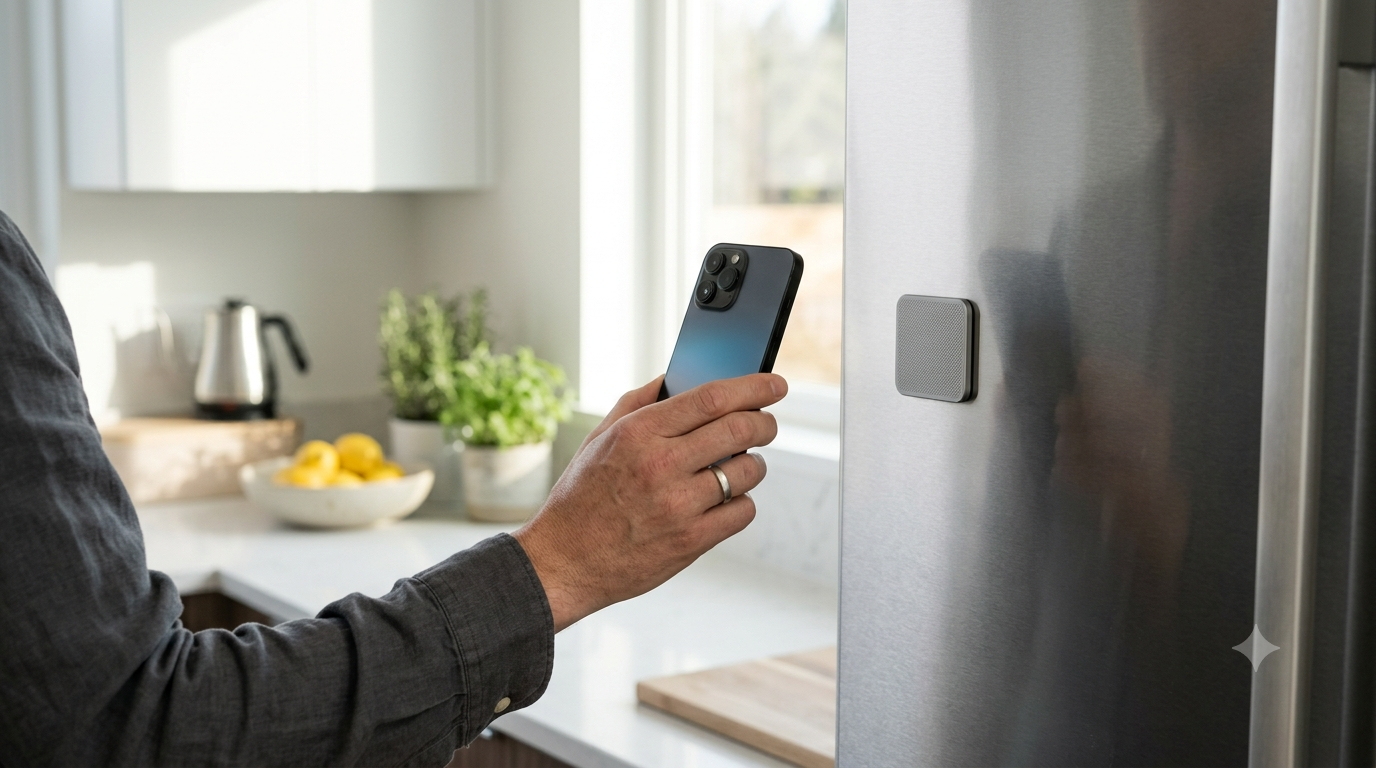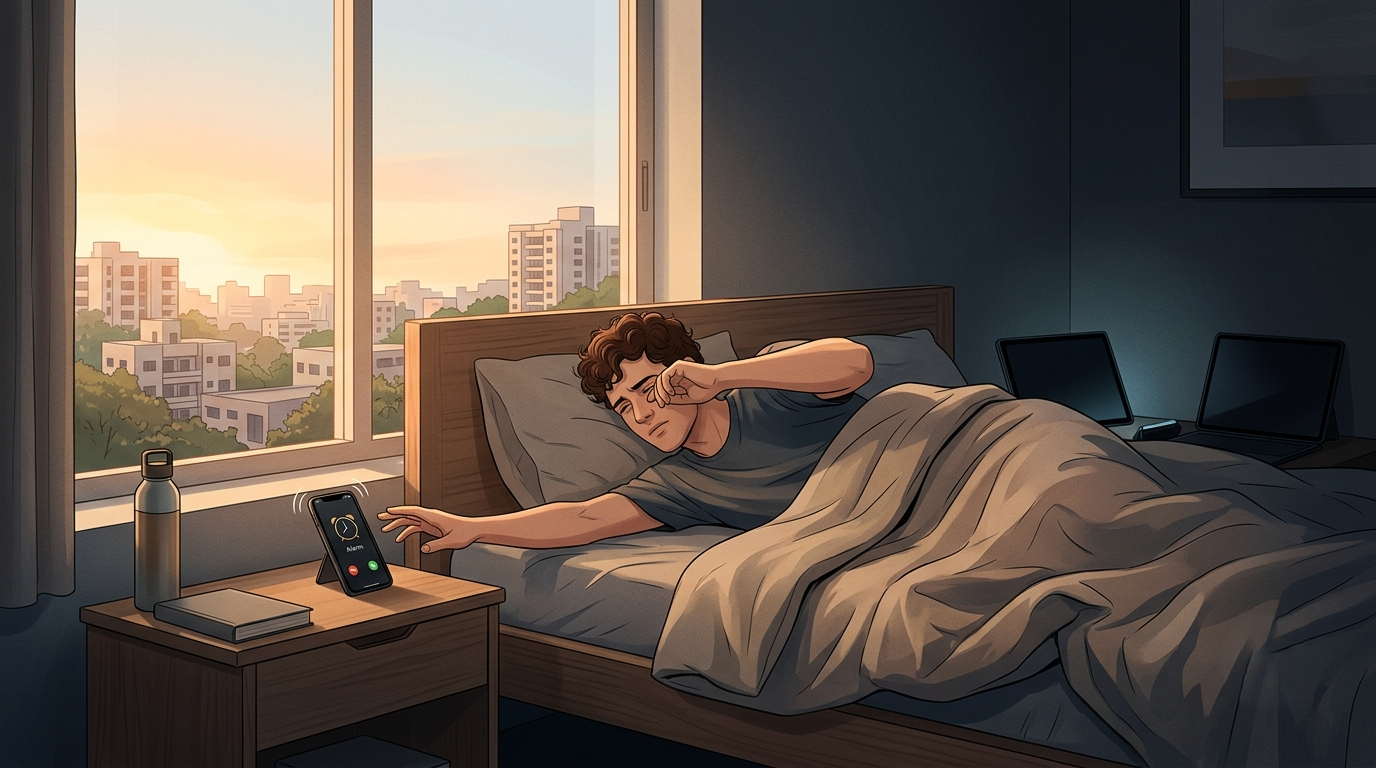

You’ve probably read a list like this before. Turn off notifications, charge your phone in the kitchen, try greyscale. It all makes sense, and for about three days it even works. Then the old numbers creep back, and you’re not sure when it happened.
That’s not a willpower problem. In the Reviews.org 2026 phone survey, the average American said they check their phone 186 times a day, and nearly half described themselves as addicted. Habits that strong don’t break because of a tip you read once.
What’s missing from most advice on how to reduce screen time is a target and a way to check it. So this guide gives you both. You’ll spend three days measuring your real baseline with the Screen Time tool already on your phone. Then you’ll cut back in weekly steps, with a clear number to hit and a checkpoint at the end of each week.
Quick Takeaways
- Spend Days 1–3 measuring, not changing anything. Your baseline is the number every target depends on.
- Record four things each night: total screen time, pickups, your top app, and the first app you open after a pickup.
- Aim for 10% below baseline in Week 1, 20% in Week 2, and 30% in Week 3, then hold that level through Day 30.
- Check your weekly average on Days 10, 17, 24, and 30.
- One bad day doesn’t reset the plan. If you miss a checkpoint, repeat that week instead of starting over.
Why Tip Lists Rarely Reduce Screen Time
Most advice on how to reduce screen time isn’t wrong. The trouble is that a list gives you actions without a goal, and without a goal you can’t tell whether anything is working.
Phone use is also mostly automatic. You reach for it while the coffee brews, in the elevator, or the second a task gets boring. Researchers at University College London found that the easiest way to break a habit is to change your environment so you stop running into the cue that triggers it. A tip list tells you to “use your phone less.” It rarely tells you which cues to remove first, or in what order.
There’s also no feedback loop. If you turn off notifications on Monday and feel better by Wednesday, you don’t know if your screen time dropped or if you simply had a busy week. Without a number, motivation fades, and the default habit wins again.
A plan fixes both problems, and it’s the most reliable way to learn how to reduce screen time without relying on motivation alone. You change one layer of your environment each week, and you measure the result before you move on.
How Much Screen Time Is Too Much?
This is the question most people ask first, and the honest answer is that there’s no official limit for adults.
Pediatric guidance is clearer. The American Academy of Pediatrics recommends no more than one hour a day of high-quality screen time for children aged 2 to 5. For older kids, the advice shifts to balance: screens shouldn’t crowd out sleep, movement, or time with other people. No matching number exists for grown-ups, partly because so much adult screen time is work.
What we do have is good evidence that cutting back helps. In a 2025 randomized trial published in PNAS Nexus, people who blocked mobile internet on their phones for two weeks, while keeping calls and texts, reported better well-being and mental health and showed better sustained attention. About nine in ten improved on at least one of those measures.
So instead of chasing a universal number, use a more useful test. Your screen time is too much when it takes time from things you’ve said matter to you, such as sleep, focus, or people. The rest of this plan measures your own number and brings it down from there.
Step 1: Measure Your Baseline With Screen Time
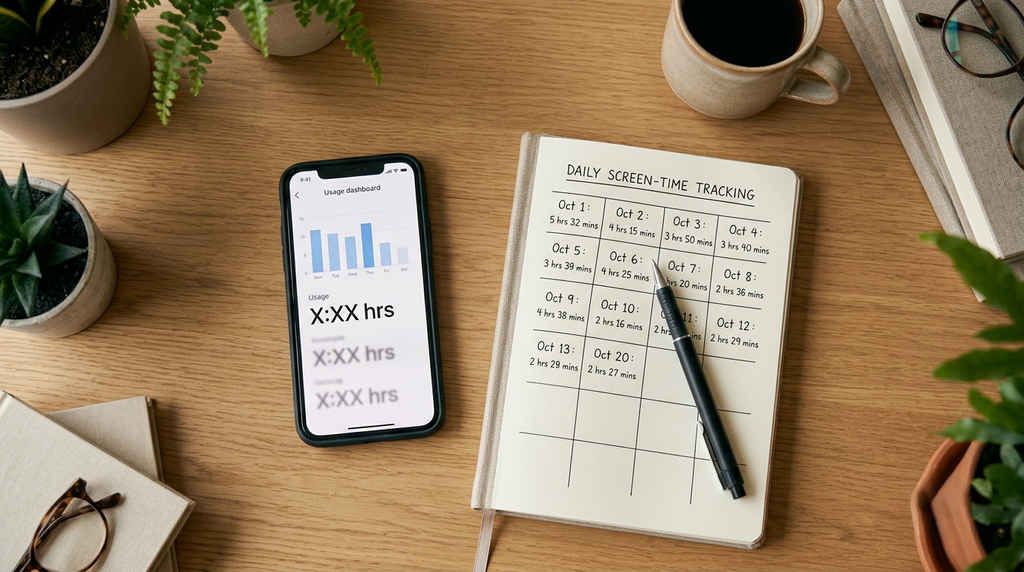
If you want to know how to reduce screen time, start by knowing how much you have. For the first three days, change nothing and use your phone the way you normally would. You’re not trying to look good here; you’re trying to get an honest starting point. If you can, let one of those three days fall on a weekend, because weekend use is often very different from a workday and a baseline built only on busy weekdays will make your targets unrealistically easy.
On iPhone
Open Settings, tap Screen Time, then tap See All App & Website Activity. You’ll see your total for the day, your most-used apps, and, a little further down, your Pickups count. You can switch between a daily and a weekly view at the top.
According to Apple’s Screen Time guide, Pickups counts how many times you wake your device to use it, and it also shows which app you open first. That first-app detail is gold. It tells you what your hand is really reaching for.
On Android
Open Settings and look for Digital Wellbeing & parental controls. The dashboard shows screen time, unlocks, and notifications for each app. The exact menu names vary a little by phone maker.
What to write down each night
Before bed on Days 1, 2, and 3, write these four numbers in a note or on paper:
| What to record | Where to find it | Why it matters |
| Total screen time | Top of the daily view | Your main target |
| Pickups (or unlocks) | Below your top apps | How often the habit fires |
| Top app by time | Most Used list | Where the hours go |
| First app after pickup | Pickups section (iPhone) | What the cue is really for |
Add up the three daily totals and divide by three. That’s your baseline. Do the same for pickups.
One caution: Screen Time doesn’t always update instantly, so record your numbers at the same time each night rather than first thing the next morning.
The 30-Day Plan at a Glance
Here’s the full plan for how to reduce screen time over 30 days. The example column assumes a baseline of 5 hours a day, so swap in your own number.
| Days | Focus | Daily screen-time target | Example (5 h baseline) | Checkpoint |
| 1–3 | Measure only | No target | 5 h | Baseline set on Day 3 |
| 4–10 (Week 1) | Notifications and home screen | 10% below baseline | 4 h 30 min | Day 10: 7-day average |
| 11–17 (Week 2) | First and last hour of the day | 20% below baseline | 4 h | Day 17: 7-day average |
| 18–24 (Week 3) | Limits on your top app | 30% below baseline | 3 h 30 min | Day 24: 7-day average |
| 25–30 | Hold and replace | Stay at 30% below | 3 h 30 min | Day 30: final average |
A checkpoint means one thing: add up your daily totals for that week and divide by seven. If the average is at or under the target, move on. If it isn’t, see the relapse section below.
Why 10% steps? Because small cuts are easier to keep, and gradual change is the realistic way to reduce screen time for good. Dropping from five hours to two overnight feels heroic on Monday and miserable by Thursday. Stepping down gives each change time to settle before you stack the next one.

Week 1 (Days 4–10): Cut the Triggers
This week targets the pings that pull you back into your phone without your say-so.
- Turn off notifications for everything that isn’t a person. Keep calls, messages, and your calendar. Turn off social apps, shopping apps, news, and games.
- Clear your home screen. Move your top app from Day 1–3 into a folder on the second page. The extra swipe sounds small, but it adds a beat of friction that interrupts the reflex.
- Move your charger out of the bedroom. A cheap alarm clock costs less than a week of lost sleep.
None of this requires willpower in the moment, and that’s the point. You’re removing cues, not fighting them.
Expect the first two days to feel strangely quiet. You may catch yourself unlocking the phone, finding nothing new, and locking it again. That’s the old cue firing without its reward, and it tends to fade as your hand learns there’s nothing waiting.
Checkpoint on Day 10: is your seven-day average 10% under baseline? If it is, you’ve probably found out how many of your pickups were started by a ping rather than by you.
Week 2 (Days 11–17): Protect the Edges of Your Day
The Reviews.org survey found that most people check their phone within ten minutes of waking. The first and last hour of the day are where scrolling does the most damage, because it sets your mood in the morning and eats into sleep at night.
This week, make two rules:
- No phone for the first 30 minutes after you wake up. Get dressed, make coffee, or step outside first.
- Phone off or out of reach 30 minutes before bed. Use Downtime in Screen Time to lock non-essential apps on a schedule.
It helps to put something else in the spot where your phone used to sit. A paperback on the nightstand or a notebook by the coffee maker gives your hands an easy alternative when the old urge shows up, which is far more reliable than simply trying not to reach.
If late-night scrolling is your weak spot, you’ll need more than a rule. Pay attention to what you feel right before you pick up the phone, because boredom and tiredness are the usual cues. These stop-scrolling tips go deeper on breaking that specific loop.
Checkpoint on Day 17: 20% under baseline. Also look at your pickups. If they dropped more than your total time did, that’s a good sign. It means the habit is firing less often, not just running shorter.
Week 3 (Days 18–24): Put a Limit on Your Top App
Now go after the app that ate most of your time during Days 1–3. For most people, that one app holds the biggest share of the hours.
In Screen Time, open App Limits and set a daily limit for that app at roughly half your baseline use. Apple shows a warning five minutes before the limit hits. Don’t tap “ignore” on reflex. Read it, then decide.
The pause matters more than the lock. In a 2023 study in PNAS, people using a self-nudge app that added a short delay before opening a chosen app closed that app in 36% of attempts. Over six weeks, they also tried to open those apps 37% less often. A longer follow-up at CHI 2024, covering more than 1,000 users, found that the openings which still happened became more intentional over time.
On Android, the same tool lives in Digital Wellbeing as App Timers. Tap the hourglass next to your top app and set the daily time, and the app icon will grey out once you’ve used it up for the day.
If the built-in limit is too easy to skip, this is the week to try a dedicated screen time limit app with stricter rules.
Checkpoint on Day 24: 30% under baseline.
Days 25–30: Hold the Line and Fill the Gap
There are no new cuts this week, so your only job is to hold steady at 30% below your baseline.
The risk now is the empty time. If you’ve freed up 90 minutes a day, something will fill it, and the phone is always the easiest option. So pick one or two offline defaults for the moments you used to scroll. That might be a book on the couch arm, a short walk after dinner, or a podcast while you cook.
On Day 30, run your final checkpoint. Compare your Day 25–30 average with your baseline, and do the same for pickups. Your result will usually land in one of three places:
- You hit 30% or more. Keep every change in place and consider one more 10% step over the next two weeks, but only if you actually want the extra time back.
- You landed between 10% and 30%. That’s still real progress. Repeat Week 3 for another seven days before deciding whether to push further.
- You’re under 10%. Go back to your nightly notes and look for the week where things stalled. That week’s change is the one that didn’t fit your life, so adjust it rather than blaming yourself.
Knowing how to reduce screen time for a month is different from keeping it down for a year. So keep going, because thirty days is a strong start rather than the finish line. In the UCL study, it took people an average of 66 days for a new behavior to feel automatic, with a wide range between people. Keep your Week 1–3 changes in place, and check your weekly average once a week for the next month.

What to Do When You Relapse
Nobody learns how to reduce screen time in a straight line. You’ll have a bad day at some point, whether it’s a stressful week, a long flight, or a new show that swallows a whole weekend. That’s normal, and it doesn’t mean the plan failed.
Start with what the research actually says. In the same UCL study, missing a single opportunity didn’t meaningfully affect habit formation. What did matter was being very inconsistent over time. One bad day is noise. A pattern is information.
Here’s how to handle each kind:
- A single bad day: Do nothing dramatic. Don’t try to “make up for it” with an extra-strict day tomorrow, because swinging between extremes tends to backfire. Go back to your normal targets the next morning.
- Two or three bad days in a row: Open Screen Time and look at the first app after pickup on those days. Something changed: a new app, a new stress, or a new routine. Fix that one cue.
- A missed checkpoint: Repeat the week. Don’t restart at Day 1, and don’t jump ahead to the next target. Stay at the current step for another seven days, then check again.
Watch for a few signs that a lapse is turning into a full relapse. Notifications quietly switched back on, the charger drifting back into the bedroom, and an App Limit you now dismiss without reading are all early warnings. Each one is a cue you removed earlier creeping back into your environment, and putting it back where it was is usually faster than any new rule.
It also helps to name the feeling behind the slip. People don’t usually binge on their phones when they feel relaxed and content. More often, they’re tired, lonely, or avoiding something hard. Noticing that pull, before you act on it, is the skill that makes every other step easier, and it’s the idea ComfortZoneCheckin is built around.
Frequently Asked Questions
You can often see a drop in the first week, especially once notifications are off. Making the change stick takes longer. Habit research suggests new routines take about two months on average to feel automatic, so plan to keep checking your numbers after Day 30.
There’s no official adult limit. A more useful test is whether your screen time takes away from sleep, focus, exercise, or people. If it does, cutting back will likely help, and a 30% reduction from your own baseline is a realistic first goal.
Screen Time counts everything, so your baseline will include work. When you work out how to reduce screen time, it’s the personal hours that matter most. If your job keeps you on a computer, focus this plan on your phone and on personal apps. Those are the hours you actually control.
That’s very common, because the override is one tap away. Try moving the limit earlier in the day, lowering it, or asking someone you trust to set a Screen Time passcode for you. If that still doesn’t work, a stricter blocker may suit you better.