The average Snapchat user opens the app around 30 times a day. That is not 30 minutes of intentional use. It is 30 separate decisions that often were not really decisions at all. Just a thumb moving out of habit before the brain catches up. Sound familiar?
For context on how embedded that habit runs: Pew Research Center’s 2024 survey found that 55% of U.S. teens use Snapchat regularly, and US teens average around 90 minutes on the app every day. College-aged users who tried to quit averaged two attempts before succeeding. In July 2025, the state of Utah sued Snapchat directly, alleging the platform deliberately engineered its features to maximize youth engagement despite known mental health risks – one of the clearest signals yet that the “it’s just an app” framing no longer holds.
Whether you are trying to cut off your child’s access during school hours or genuinely trying to stop yourself from opening the app every time you pick up your phone, blocking Snapchat on iPhone is doable. It is just a bit more layered than most guides admit.
Here is what you need to know:
Quick Takeaways
- Use App Limits in Screen Time to set a daily cap (1 minute effectively blocks the app)
- Use Content and Privacy Restrictions for a hard block that removes Snapchat from view
- Use Downtime to schedule hours when Snapchat is unavailable
- Turn off notifications as a lighter first step if a full block feels like too much
- Blocking without a conversation rarely sticks – the social dynamics of streaks and group chats need to be addressed alongside the technical limits
Why Snapchat Is Harder to Leave Than Other Apps
Most people do not think of Snapchat as an addiction. They think of it as an obligation. That distinction matters when you are trying to block it.
The streak trap
Snapchat streaks measure how many consecutive days you and a friend have snapped each other. The number sits next to a fire emoji beside their name. It sounds harmless until the streak reaches 200 days – missing one sends a ripple of low-grade dread through your afternoon.
Research backs this up precisely. A 2023 study by van Essen and Van Ouytsel, published in Telematics and Informatics Reports, examined how streaks affect early adolescents and found a meaningful correlation between streak participation and both problematic smartphone use and fear of missing out. Girls were more likely to engage in longer streaks, and the researchers noted that Snapstreaks “encourage compulsive use, are seldom rich in meaning or context, and often cause real-world issues between friends.” Students in the study directly disobeyed instructions to put away phones during class to maintain streaks – sending meaningless images just to keep the number alive.
The mechanism is loss aversion. Research on behavioral economics consistently shows that people experience the pain of losing something roughly twice as intensely as the pleasure of gaining an equivalent thing. The longer the streak, the higher the psychological cost of breaking it. That asymmetry is not accidental in Snapchat’s design.
Most people who want to block Snapchat do not want to lose the app. They want to not feel like a bad friend for ignoring it. That is a different problem – and one that a Screen Time limit alone will not solve.
Variable rewards keep you coming back
Every time you open a DM, there is a small chance it is something good. Not guaranteed. That unpredictability is the hook. Behavioral science research published in the Journal of Behavioral Addictions in 2023 confirmed that variable (unpredictable) rewards generate more sustained dopamine activity than rewards you can count on. The mechanics are the same ones that make slot machines hard to walk away from.
This is why Snapchat is notably harder to leave than, say, a to-do app or a podcast player. The potential reward is always one tap away. And when notifications keep arriving 30 times a day on average, the pattern reinforces itself.
This passive drift from a quick check into a longer scroll is exactly what dwell detection tools are designed to surface. If you are less interested in hard blocking and more interested in building awareness of how Snapchat fits into your day, ComfortZoneCheckin takes that approach: catching the moment the app shifts from deliberate use to passive time loss.
Method 1: Use Screen Time App Limits (Quickest Option)
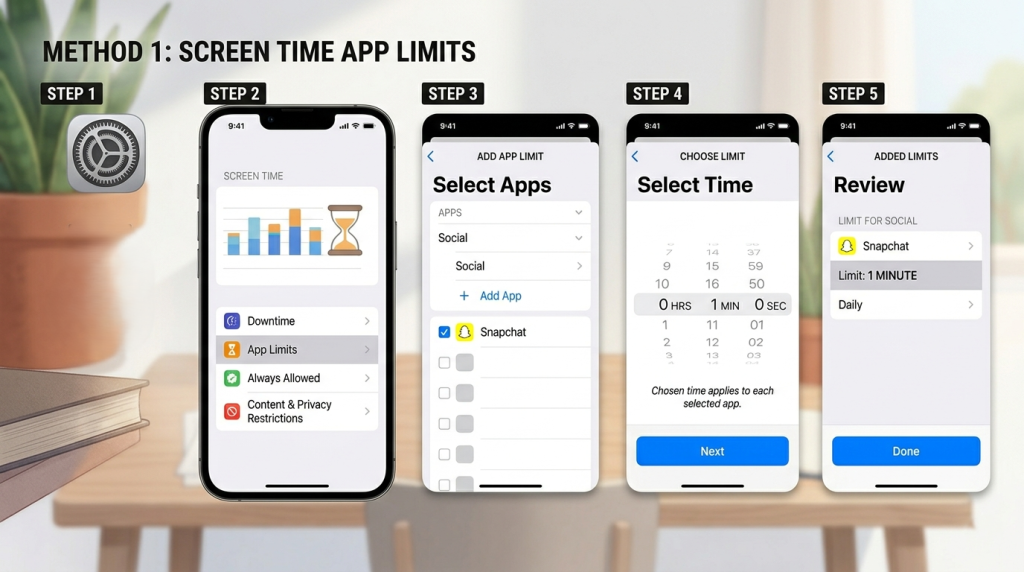
App Limits are the fastest way to restrict Snapchat on iPhone and the right starting point for most people. If you are also working on total device use beyond Snapchat, limiting overall screen time on iPhone works through the same Screen Time settings.
Best for: Adults managing their own usage, or parents whose children are cooperative about limits.
What it does: Snapchat locks after your chosen daily time cap. Set it to one minute, and it is functionally blocked.
Steps:
- Open Settings on your iPhone
- Tap Screen Time
- Tap App Limits, then Add Limit
- Under Social, find and select Snapchat
- Set the time limit to 1 minute (or your preferred amount)
- Tap Add in the top right corner
Once the limit is reached, Snapchat goes gray with a small hourglass icon. It is still technically accessible. One tap lets the user request more time or ignore the block entirely if there is no passcode protecting Screen Time.
How to make App Limits harder to bypass
- Go to Settings > Screen Time > Use Screen Time Passcode and create a passcode your child does not know (avoid their birthday or any number they have seen you type)
- In the App Limit settings, enable Block at End of Limit, which prevents the “Ignore Limit” option from showing up without the passcode
- Keep your Screen Time passcode different from your device unlock code
Without these steps, the limit is more of a suggestion than a restriction. With them, it holds up reasonably well for most situations.
Method 2: Block Snapchat Entirely with Content and Privacy Restrictions
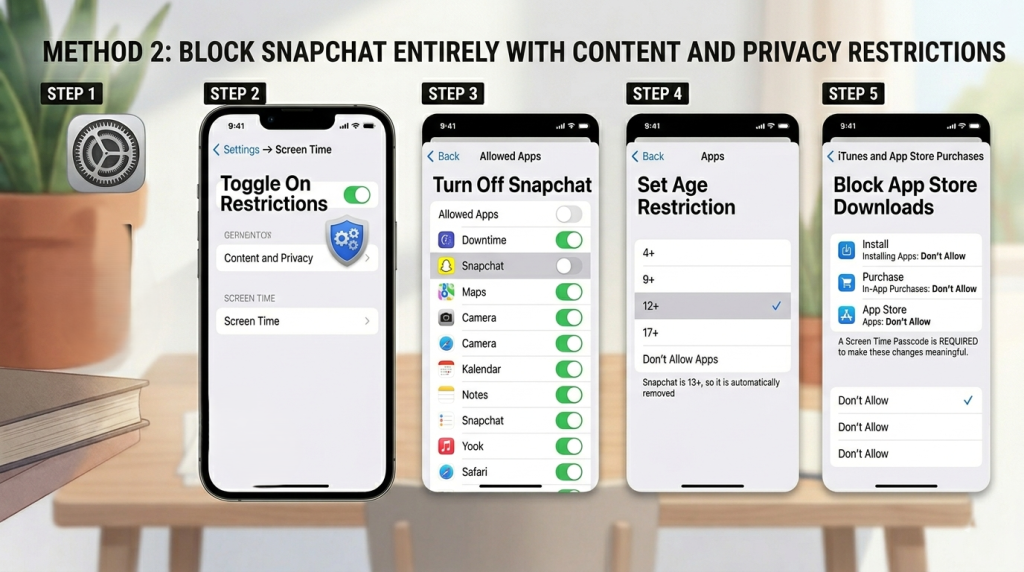
This method is the harder block. Snapchat disappears from view entirely. It does not show as locked; it simply cannot be opened.
Best for: Parents who want a complete, no-exceptions block.
Steps:
- Go to Settings > Screen Time
- Tap Content and Privacy Restrictions
- Toggle the setting on
- Tap Allowed Apps
- Find Snapchat and toggle it off
Alternatively, you can block by age rating:
- Content and Privacy Restrictions > Content Restrictions > Apps
- Set the allowed age rating to 12+
- Because Snapchat carries a 13+ rating, it disappears automatically
To stop reinstallation:
- Still in Content and Privacy Restrictions, tap iTunes and App Store Purchases
- Tap Installing Apps and set it to Don’t Allow
This prevents your child from downloading Snapchat again, even if they find a workaround to re-enable it. A Screen Time passcode is required here to make any of this meaningful. Without one, any of these settings can be reversed.
Method 3: Schedule Downtime to Block Snapchat During Specific Hours
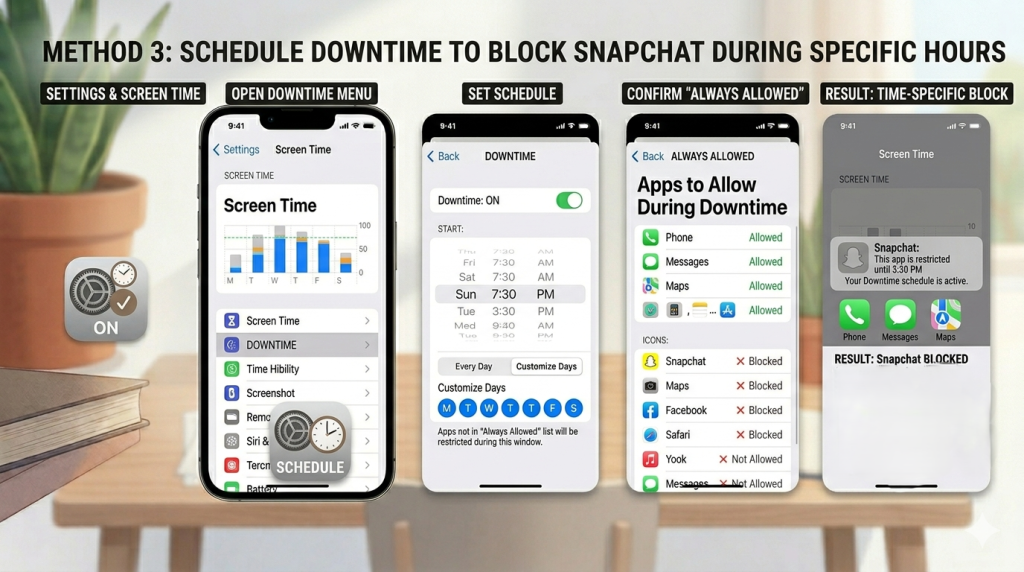
Downtime puts the iPhone into a restricted state on a schedule. Only apps in the “Always Allowed” list remain usable during the downtime window.
Best for: Families who are fine with Snapchat during some parts of the day but want it gone during school hours, homework time, or after a certain time at night.
Steps:
- Settings > Screen Time > Downtime
- Toggle Downtime on
- Choose Every Day or Customize Days for a school-week schedule
- Set your Start and End times (example: 7:30 AM to 3:30 PM for school hours)
- Confirm that Snapchat is not listed in the Always Allowed apps list
Common Sense Media has documented that children aged 8 to 12 average 5 hours and 42 minutes of daily screen time, and teens average over 8 hours. Downtime does not solve that on its own, but it creates predictable offline windows that can shift the habit over time.
One thing parents often get wrong: they schedule Downtime for sleeping hours but leave afternoons open. The higher-impact window is usually the two to three hours after school, before homework is done. For parents still working out what healthy limits look like at different ages, this guide on screen time for 12-year-olds offers a more detailed breakdown. That is when the device is idle, and Snapchat tends to absorb the gap. to absorb the gap.
Method 4: Turn Off Snapchat Notifications
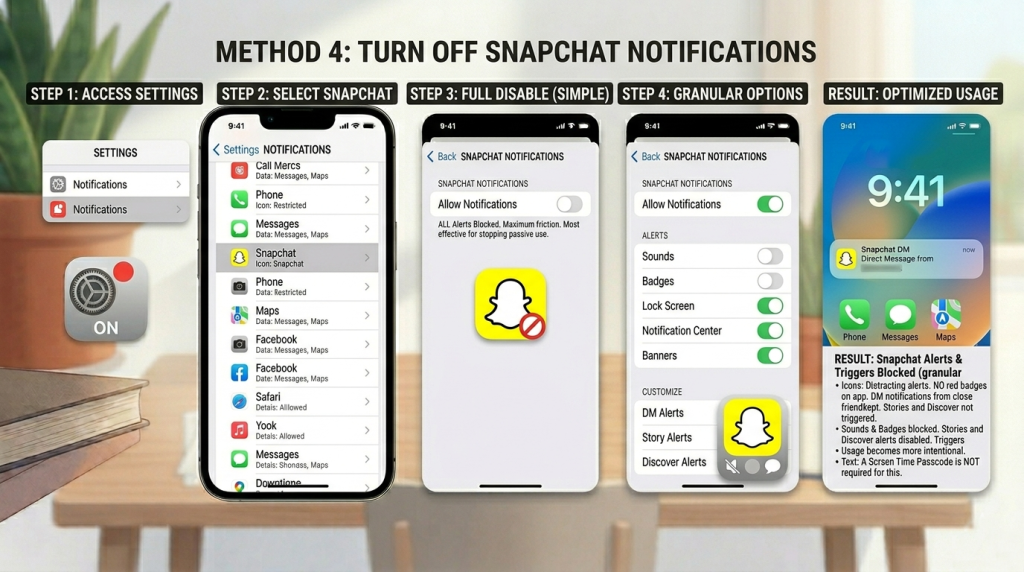
If a full block feels like too big a step, removing notifications is a meaningful middle ground. The same friction-based thinking applies to other high-use apps; if Instagram is part of the pattern, this guide on stopping Instagram use covers similar ground. The notification is usually the trigger. It is what makes you pick up the phone and open the door to passive use.
Steps:
- Settings > Notifications
- Scroll down and tap Snapchat
- Toggle Allow Notifications off
You can also go granular if you want to keep some alerts:
- Turn off Sounds and Badges while keeping DM notifications from close friends
- Disable Stories and Discover alerts, which are the most passive-scroll-inducing
This approach works best for adults who are trying to gradually reduce their Snapchat use without cutting it out entirely. It does not restrict access. It just removes the automatic pull. Pair it with Method 1 (App Limits) for a more layered approach to restricting Snapchat on your iPhone.
Method 5: Use Focus Mode to Pause Snapchat During Work or Study
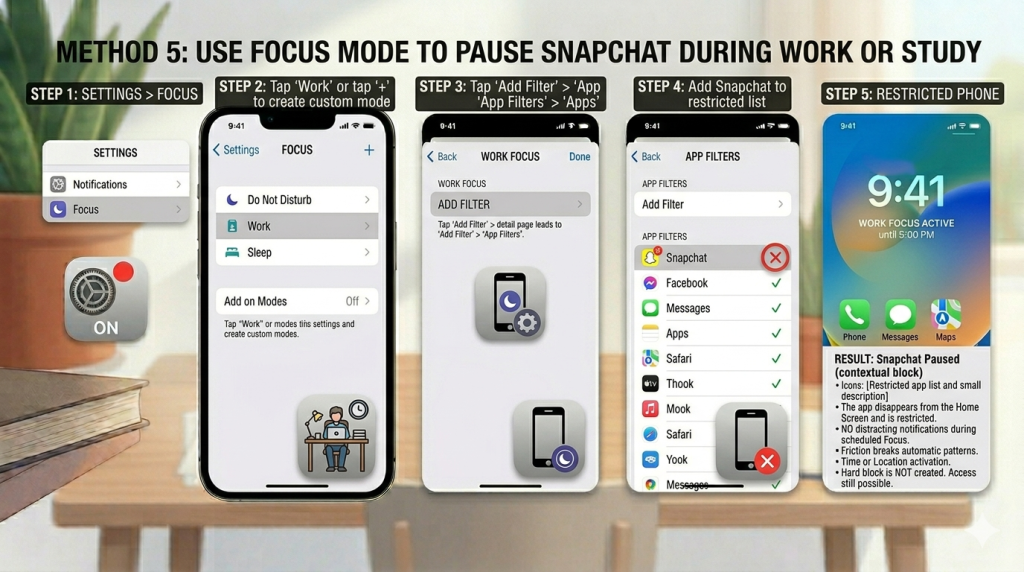
Focus Mode is underused for social media management, but it works well as a contextual block.
Best for: Adults who want Snapchat unavailable during defined work blocks but do not want to set a rigid daily cap.
Steps:
- Settings > Focus
- Tap Work (or tap the + to create a custom Focus mode)
- Tap Add Filter > App Filters > Apps
- Add Snapchat to the restricted apps list
- Set the Focus mode to activate automatically by time (e.g., 9 AM to 5 PM on weekdays) or location
Focus Mode does not create a hard block. Snapchat can still be opened manually by disabling Focus, but it removes the app from the home screen and stops all Snapchat notifications while the mode is active. For many people, that friction alone is enough to break the automatic reaching-for-the-phone pattern.
What to Expect After Blocking – The Social Cost
This is the part most blocking guides skip entirely, and it is often what causes parents to reverse the restriction after a few days.
Pew Research’s April 2026 survey of teens’ experiences on Snapchat found that most teens use the app primarily for messaging and staying connected with their friend group – not for content consumption. That makes Snapchat functionally different from Instagram or TikTok. Blocking access to Snapchat can genuinely cut a teenager off from how their social group coordinates, which is a real cost, not a dramatic overreaction.
What this means practically:
- Expect pushback that sounds like “everyone uses it to make plans” – because for many friend groups, that is accurate
- A full hard block without an alternative (group chat on iMessage, for example) often backfires; the teen feels socially isolated and finds workarounds faster
- A time-limited block – no Snapchat during school hours, unlimited after 4 PM – tends to hold better than a total ban because it preserves the social function while protecting the highest-risk window
- The conversation about why the limit exists, framed around design and dopamine rather than punishment, consistently produces better compliance than a silent restriction
The van Essen and Van Ouytsel research also found that teens with higher FOMO scores were more likely to engage in longer streaks – meaning the students who most need the break are the most likely to resist it. Naming that dynamic explicitly in the conversation (“the app is designed to make stopping feel like betraying your friends”) tends to reduce the emotional charge around the restriction.
What to Do When Screen Time Keeps Getting Bypassed
Here is the part most guides skip. Screen Time is a software layer. A motivated teenager has time, internet access, and nothing to lose. That combination is formidable.
The most common bypass methods, and how to counter each one:
- Changing the time zone: The device clock moves forward to skip past a Downtime window. Counter: Go to Settings > General > Date and Time and enable Set Automatically. Make sure Screen Time cannot be altered without your passcode.
- Guessing the Screen Time passcode: Common if the passcode is a birthday, device unlock code, or something the child has watched you type. Counter: Change it to something unrelated and memorize it.
- Factory resetting the device: A full reset wipes Screen Time settings. Counter: Keep your Apple ID password private and off any shared document or device. A reset without the Apple ID requires physical access to a computer. Removing that option closes most of this route.
- Using a third-party browser to access Snapchat’s web version: Safari restrictions do not apply to downloaded browsers like Chrome or Firefox. Counter: In Content and Privacy Restrictions, go to Allowed Apps and remove any third-party browsers. Also block snap.com and web.snapchat.com under Never Allow in Web Content settings.
A 2023 Pew Research Center study found that 66% of U.S. parents use parental controls on their children’s devices. That number drops significantly as children get older. The bypass methods above tend to emerge around the same time parental supervision decreases. If bypasses are happening consistently, third-party apps like Bark, Qustodio, or AirDroid Parental Control use separate credentials and deeper system access that are harder to circumvent than Screen Time alone.
One more thing: hard blocking without a conversation tends to increase the appeal of the restricted thing. Pairing any method here with an honest discussion about focus, about how the app is designed to keep people coming back, about what you are trying to protect, often makes the technical limit more durable.
For adults trying to manage their own Snapchat use rather than a child’s, the challenge is different: you are the blocker and the bypasser at the same time. Tools focused on awareness of passive drift, rather than willpower restrictions, tend to work better for self-managed behavior change. restrictions, tend to work better for self-managed behavior change.
Frequently Asked Questions
Yes. Through Family Sharing, you can push Screen Time settings to a child’s device from your own phone. They will notice Snapchat is missing, but you do not need physical access to their device to set or update restrictions.
In the short term, yes. Most people reinstall within days unless they also block app downloads through Content and Privacy Restrictions. Deleting without locking reinstallation is a temporary fix.
Change it immediately to something unguessable. Also enable “Block at End of Limit” in App Limits, and consider switching to a third-party parental control app that uses separate login credentials.
Yes. Snapchat has a web version. Block it through Screen Time: Content and Privacy Restrictions > Web Content > Never Allow, and add web.snapchat.com and snap.com to the list.
Yes. Downtime handles this. Set school hours as your Downtime window, confirm Snapchat is not in the Always Allowed list, and enable a Screen Time passcode. Through Family Sharing, you can also adjust the schedule remotely from your own iPhone.