Have you ever found yourself caught in the endless loop of scrolling, promising yourself “just one more minute,” only to realize hours have slipped by? You’re not alone. Distraction blocking software has become one of the more reliable ways to reclaim that time, since Apple’s built-in Screen Time often falls short of the boundary enforcement most people actually need. Research on social media usage trends shows how often people check their devices in a given day, which is exactly why a soft reminder rarely works and something closer to a hard stop does.
Part of the reason discipline alone doesn’t hold is that habit loops override it directly: the trigger-action-reward cycle repeats until reaching for your phone stops being a decision and becomes a reflex.
Even with the best intentions to limit screen time, the habit usually wins unless something outside your own willpower interrupts it. That’s what the apps further down this list are built to do.
Quick answer: Open Settings, tap Screen Time, then Content and Privacy Restrictions. Turn it on, set a passcode, tap Allowed Apps, and switch off whatever you want gone. Want something sturdier than a toggle you can flip back at 2am? The apps further down add real friction.
How to Block an App on iPhone (Built-in Method)
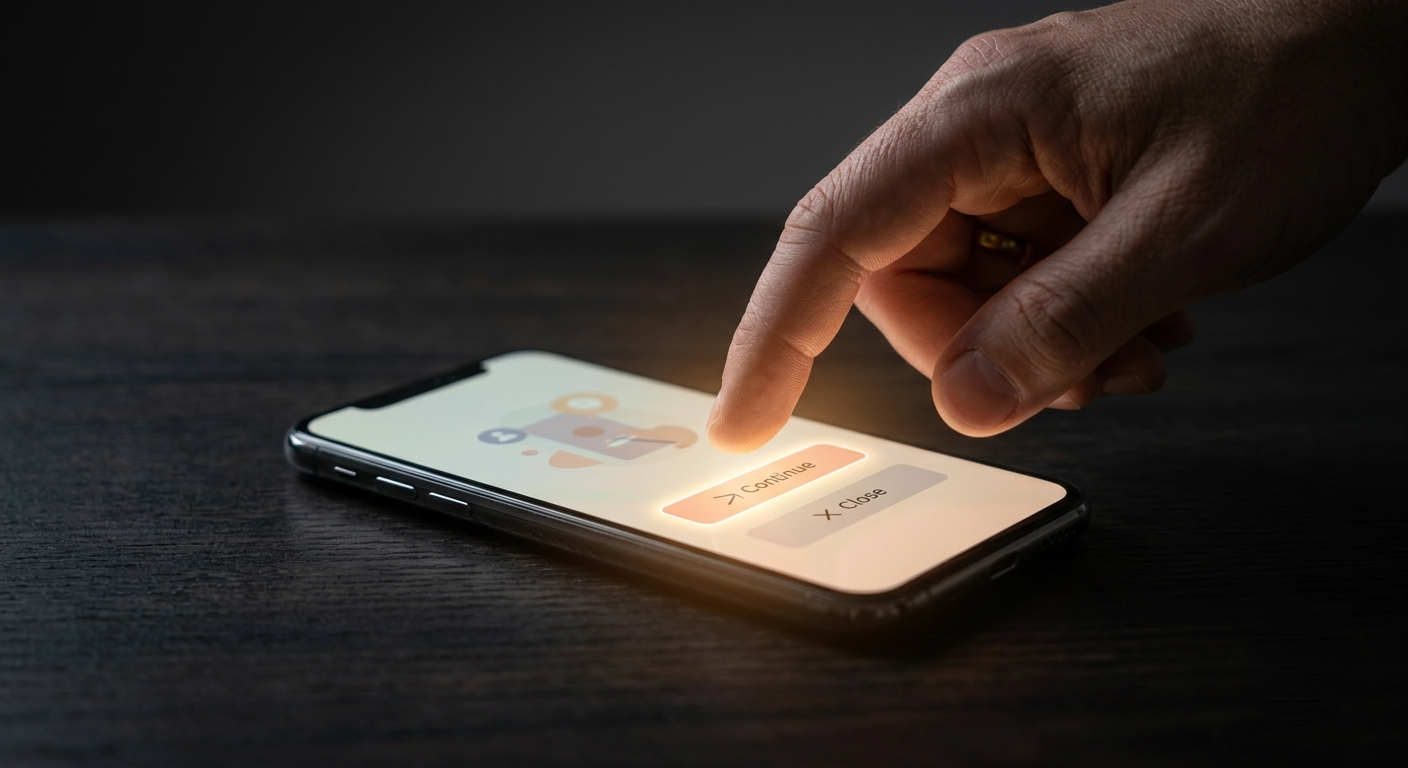
Before trying a third-party app, it helps to know what your iPhone can already do. Go to Settings, tap Screen Time, then Content & Privacy Restrictions, and switch it on. You’ll set a separate Screen Time passcode, different from your unlock code, which matters most for parents: without it, a child can’t undo the restrictions you’ve set. From there, tap Allowed Apps and turn off the toggle next to anything you want gone; its icon disappears from the home screen until you switch it back on. If a full block feels extreme, use App Limits instead and set a daily cap per app or category. Keep in mind this method still allows an Ignore Limit override, which is why many people eventually look for something stricter. This built-in method is free and usually enough for light use or for parents managing younger kids; if it hasn’t broken the habit, the apps below add real friction.
Best App Blockers for iPhone (Ranked by Strictness)
Not every app blocker enforces its limits the same way. We tested each of these across different use cases, student study sessions, remote work blocks, and nighttime detox windows, and ranked them by how hard they are to override in a moment of weakness. Distraction blocking software works at the system level rather than as a dismissible timer, catching an app launch before it happens, not unlike how a quality assurance consultant catches a problem before it compounds.
Most of the tools below were built primarily to stop social media blocking, since that’s where the bulk of unplanned screen time usually goes, though several extend to games and news apps as well.
Well-designed blockers also tend to handle notifications thoughtfully. The better ones, often built by an experienced iOS App Development Company, include smart notification management so alerts don’t pile up while you’re trying to stay off your phone.
That kind of design lets you focus on your tasks effectively instead of splitting attention between blocking one distraction and reacting to another.
Before installing any of these, it’s worth a quick check of each app’s privacy policies to see how your usage data actually gets handled.
Here are the seven we tested, ranked from hardest to override to easiest.
1. Opal – For Zero-Override Blocking
Opal stands out for its hard-to-bypass focus sessions, the strictest option in this lineup. It integrates directly with iOS at the system level, so it can enforce blocks across every app on your phone rather than just inside its own interface. Premium features sit behind a paywall, which limits access for casual users, but for students and deep workers who need a lock that doesn’t budge, that’s usually a fair trade.
- Strength: Hard-to-bypass focus sessions
- Limitation: Premium features locked
- Ideal User: Students & deep workers
2. Freedom – For Multi-Device Control
Freedom blocks apps and websites across every device you own at once: your iPhone, your Mac or Windows laptop, and your browser, which is the main thing separating it from iOS Screen Time: Screen Time only ever covers the one phone in your hand. That cross-device distraction blocking is exactly what remote workers need, since it closes the workaround of just switching from your phone to your laptop mid-scroll. Setup takes more planning than the others on this list, but for anyone managing distraction on a desktop app-blocking basis as well as mobile, it’s the only one built for that.
Remote workers seeking control over distractions on multiple platforms will find this app beneficial.
- Strength: Blocks apps + websites everywhere
- Limitation: Requires planning sessions
- Ideal User: Remote workers
3. Flipd – For Study Lock Mode
Flipd’s scheduled focus lock lets you set customizable blocking schedules around study sessions, so the lock activates automatically at the times you set rather than requiring you to start it manually each time. It doesn’t offer the zero-override strictness of Opal, but for exam prep and recurring study blocks, the scheduling is the actual selling point.
- Strength: Scheduled focus lock
- Limitation: Not extreme-level blocking
- Ideal User: Exam prep users
4. Offtime – For Digital Detox Hours
Offtime is built around custom quiet periods rather than constant blocking, useful if you want specific windows, evenings, weekends, dinner, where your phone goes quiet by design. Automation is limited compared to the others here, so you’re setting these windows manually, but for nighttime digital detox specifically, that’s usually all it needs to do.
- Strength: Custom quiet periods
- Limitation: Limited automation
- Ideal User: Night-time phone users
5. RescueTime – For Awareness First
RescueTime doesn’t block anything outright; instead, it tracks exactly where your time goes across apps and gives you detailed usage reports, useful if the real problem is that you don’t yet know what’s eating your day. It also runs on desktop, not just iPhone, so it can show the full picture across every screen you use.
- Strength: Detailed usage insights
- Limitation: Doesn’t fully block apps
- Ideal User: Professionals tracking habits
6. Built-in Screen Time – For Basic Limits
Built into iOS at no extra cost, Screen Time offers basic app limits without installing anything new. Its main weakness is the easy “one more minute” override covered above, which makes it a reasonable starting point for light control but not a real deterrent once the habit is established.
- Strength: Free & built into iOS
- Limitation: Easy “one more minute” override
- Ideal User: Light control users
7. One Sec – For Impulse Control
One Sec adds a short pause before an app opens, just long enough to interrupt the reflex of opening social media blocking targets like Instagram or TikTok without thinking. It only covers the apps you select rather than blocking broadly, but for scrollers whose problem is impulse rather than duration, that pause is often the whole fix.
- Strength: Adds a pause before opening apps
- Limitation: Works on selected apps only
- Ideal User: Social media scrollers
Quick Comparison
- Most Strict: Opal – no easy override, but premium features require a paid subscription (~$4.99/month)
- Best for Students: Flipd – scheduled lock mode, free tier available with core features
- Best Free Option: Built-in Screen Time – zero cost, already on your iPhone, good enough for light use
- Best for Impulse Control: One Sec – adds a friction pause before apps open, free for one app, paid for unlimited
- Best for Multi-Device: Freedom – blocks across iPhone, Mac, and browser simultaneously, subscription required
- Best for Awareness Without Blocking: RescueTime – detailed usage reports, no hard blocking, free and premium tiers
- Best for Digital Detox: Offtime – custom quiet hours, good for nighttime use, one-time purchase
FAQs
Go to Settings, tap Screen Time, then Content & Privacy Restrictions, set a passcode, tap Allowed Apps, and switch off the app you want blocked.
Yes, they help manage usage, block apps, and set daily limits. However, they work best when combined with clear rules and communication at home.
It depends on how they’re set up. If protected with a strong passcode or managed by a parent, they’re harder to disable. Without proper setup, they can sometimes be bypassed.
Most well-known apps are safe from official app stores; always check permissions and privacy policies before installing.
Trusted apps usually run in the background without slowing down the device. Poorly optimized or unknown apps may impact performance.