You set a Screen Time limit two weeks ago. Instagram, maybe social media as a whole. You picked a number (two hours, one hour) and told yourself this time would be different. Since then, you’ve tapped “Ignore Limit” at least four times. Maybe more.
That’s not a self-control failure. It’s a design problem.
Americans check their phones roughly 186 times a day, about once every five minutes during waking hours, and nearly 85% of us reach for our phones within 10 minutes of waking up. Your iPhone is one of the most behaviorally engineered objects ever built. The limits you set against it need more than good intentions and a time picker.
This guide covers the correct Screen Time setup on iOS 18 (the current stable release), notes what’s changing in iOS 26 for those on the public beta, and then goes one step further into the friction layer that actually makes limits hold.
Quick Takeaways
- Screen Time is built into every iPhone on iOS 12 or later; find it under Settings
- App Limits cap daily usage per app or category; always enable “Block at End of Limit”
- Downtime schedules a full blackout window and doesn’t reset at midnight as App Limits do
- A Screen Time passcode is not optional if you want limits to stick
- iOS 26 (in public beta as of mid-2026) adds zero-minute limits and stronger bypass prevention – not yet in the stable release
- Limits alone depend on willpower at exactly the wrong moment; friction tactics are the second layer that makes them hold
- More digital wellbeing strategies on the ComfortZoneCheckin blog
What iPhone Screen Time Actually Tracks
Screen Time isn’t a separate app. It runs in the background once you activate it, logging every minute spent in every app, every phone pickup, every notification that arrives. Apple’s official Screen Time documentation covers the full feature set.
The dashboard shows you daily and weekly totals by category, your most-used individual apps, how often you picked up your phone, and which apps sent the most notifications. With “Share Across Devices” turned on, it combines usage from everything signed into your Apple ID.
What it doesn’t track: whether you were using an app on purpose. An iPhone screen time limit on Instagram counts the same whether you were messaging a friend or scrolling content you don’t care about. The tool sees time. It doesn’t see intent.
That gap matters. It’s where most screen time quietly slips through.
A note on iOS 18 accuracy issues: A widely reported bug in iOS 18 caused Screen Time to display inflated usage numbers for some users – reports of 10 to 21 hours on days where phones were barely used, and Settings crashing when opening Screen Time. These issues are largely resolved in iOS 18.5. If your numbers look obviously wrong, restart your device and ensure you’re on the latest iOS 18 point release. Turning off Background App Refresh has also helped some users where the Settings crash persists.
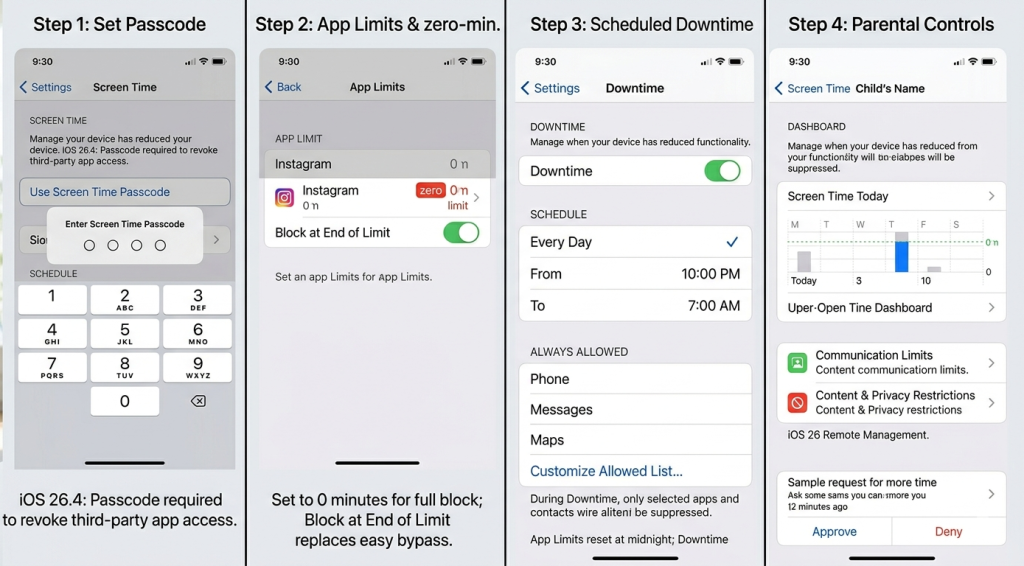
Step 1: Turn On Screen Time
Open Settings, scroll to Screen Time, tap “App & Website Activity,” then “Turn On App & Website Activity.”
You’ll be asked whether this is your iPhone or a child’s device. Choose “This is My iPhone” for self-management.
Give it at least one full day before setting limits. You want a real baseline, not a guess about which apps are actually the problem.
Set a Screen Time Passcode
Without a passcode, every limit you set is decorative.
Tap “Use Screen Time Passcode,” enter a four-digit code that’s different from your device passcode, and enter your Apple ID as a recovery backup.
If you genuinely don’t trust yourself to hold the line, have someone you trust set the passcode. It sounds extreme. It works better than any other single change.
What’s changing in iOS 26 (beta): Revoking Screen Time access from third-party apps will require the Screen Time PIN rather than just Face ID. A longstanding bypass route that frustrated many self-managers is being closed in this release.
Step 2: Set App Limits
Settings > Screen Time > App Limits > Add Limit.
You’ll see categories: Social, Entertainment, Games, Productivity, and others. Select an entire category or tap into it and choose specific apps. Set your daily time allowance and which days it applies to.
The toggle that most people miss: Block at End of Limit. Turn it on. The default behavior shows a soft “you’ve reached your limit” prompt with a clearly labeled Ignore button. Block at End of Limit replaces that with a harder stop. You can still unlock with the passcode, but one-tap bypass is gone.
What’s changing in iOS 26 (beta): Zero-minute limits are being added. Currently, the minimum App Limit is one minute – which parents and self-managers have long used as a workaround to block apps completely without deleting them. iOS 26 will allow a true zero-minute limit. Useful if there’s an app you keep re-downloading.
Category vs. Individual App Limits
Category limits cover everything in that category automatically, including new apps you download. Faster to set up. Blunter: a Social limit catches Instagram and Messages together.
Individual app limits let you target Instagram without touching Messages. More precise. Requires setting each app separately. Doesn’t auto-cover new apps.
The setup that holds best: a category cap as the outer limit, a tighter individual cap on your two or three highest-risk apps. Two layers are harder to erode than one.
Step 3: Schedule Downtime
App Limits manage how long. Downtime manages when.
Settings > Screen Time > Downtime > toggle on > set your hours.
During Downtime, everything outside your Always Allowed list is blocked. Phone, Messages, and Maps are allowed by default. Customize the list to keep anything practically essential: a sleep tracker, transit app, whatever actually needs to be reachable.
A sensible starting setup: 10 PM to 7 AM. The late-night scroll is where most people lose 45 minutes they don’t notice they’re losing.
One distinction worth remembering: App Limits reset at midnight every day. If you hit a two-hour Instagram limit at 11:50 PM, the limit resets ten minutes later. Downtime runs on the schedule you set, full stop.
What’s changing in iOS 26 (beta): In-app browsers will be suppressed during Downtime, even for Always Allowed apps. A common workaround – opening Safari through an allowed app – is being closed in this release.
Step 4: Set Up Parental Controls
Go to Settings > Screen Time, then tap your child’s name under Family. They’ll need to be in your Apple Family Sharing group.
From your device, you can set Downtime, App Limits, Communication Limits, and Content & Privacy Restrictions without touching your child’s phone.
Content & Privacy Restrictions let you block explicit material by age rating, disable Safari or the App Store, restrict in-app purchases, and set who the child can contact.
Children can send a request for more time when they hit a limit. You get a notification to approve or deny from your own phone.
One reality check: Common Sense Media found that more than 70% of US teens had bypassed their own or their parents’ Screen Time limits at least once. iOS 26’s zero-minute limit closes the one-minute workaround, and stronger bypass alerts will notify you when someone attempts to tamper with the passcode settings.
iOS 18 note for parental controls: App Limits now persist even after a child uninstalls and reinstalls a limited app – a genuine improvement introduced in iOS 18 that closed a commonly used workaround.
Here’s what no amount of correct configuration fully solves for self-managed adults: the “Ignore Limit” button appears at exactly the wrong moment.
Most impulsive phone use unfolds in under a second. A boredom cue fires. The thumb opens an app. The brain gets a small dopamine hit. This happens before conscious decision-making has a chance to engage. The Screen Time limit fires at the end of that loop, after the reward cycle is already running.
Research on friction-based behavior change finds that adding friction reduces impulsive app opens by 30 to 50%. A soft prompt with a labeled bypass button isn’t friction. It’s a formality.
This is the gap that passive dwell detection targets. The Inspiration Loop pattern – 20-plus minutes of unintended passive consumption – is invisible to App Limits. Screen Time sees that you spent two hours on Instagram. It has no way of knowing that 90 minutes of that was drift, not choice.
The Friction Layer: What Makes Limits Actually Hold
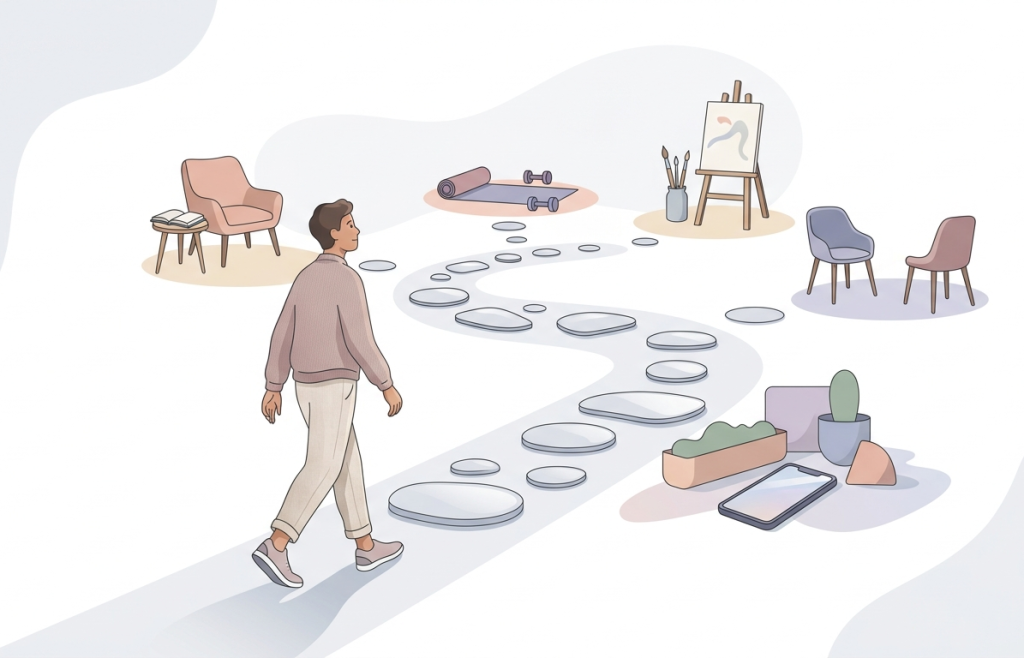
Screen Time setup is layer one. These tactics are layer two. None of them require willpower.
- Grayscale mode. Settings > Accessibility > Display & Text Size > Color Filters > Grayscale. Color is one of the primary cues that keeps you engaged: red notification badges, saturated thumbnails. Multiple peer-reviewed studies confirm grayscale reduces daily phone use – a 2024 study by Dekker and Baumgartner in Mobile Media & Communication found a range of 22 to 50 minutes less per day across participants, with the strongest reductions for image-heavy apps like Instagram and Netflix. The effect is most durable when stacked with other friction rather than used alone.
- Phone out of the bedroom. A UT Austin study (Ward et al., 2017) found that the mere presence of a phone – face-down, silent – measurably reduces cognitive capacity on demanding tasks, because the brain expends resources resisting the impulse to check it. Remove it from the bedroom overnight, and the late-night scroll problem largely disappears on its own. Research also links each additional hour of nighttime screen use to 15 to 25 minutes of lost sleep.
- A delay app. One Sec, Opal, and ScreenZen each insert a pause before a configured app opens. One Sec reports a 57% reduction in app opens after one week of use. The pause is long enough to break the reflex without being punishing. You can still open the app. You just can’t open it in under a second anymore.
- Remove icons from your home screen. Apps are still searchable via Spotlight. But removing the visual trigger breaks the reflex. This pairs naturally with the pattern interrupt model – a nudge timed to when passive dwell begins rather than after you’ve already spent an hour you didn’t plan on.
Willpower-based approaches fail because phone use follows environmental cues, not conscious decisions. Design the environment and the behavior shifts.
Using Screen Time Reports to Build Awareness
The weekly Screen Time summary is one of the most honest things your phone shows you. Most people dismiss it in three seconds. Don’t.
Settings > Screen Time > See All Activity shows you daily totals, your most-used apps, pickup frequency by hour, which app you opened first after each pickup, and which apps generated the most notifications.
The pickups-by-hour view is worth studying. Most people have a specific vulnerability window – post-lunch, pre-sleep – where pickups spike. That’s your most productive target for a Downtime schedule.
Screenshot your baseline before you change anything. Check back after week two. The comparison tells you more than any projected goal ever will.
Common Mistakes That Undermine Your Limits
- No passcode. Limits without a passcode are suggestions.
- Block at End of Limit is off. The default App Limit prompt is easy to bypass. The block toggle is what makes it function like an actual limit.
- Relying on App Limits for late-night protection. They reset at midnight. Downtime is the right tool for sleep window coverage.
- Category limits only, no individual app limits. Instagram can consume your entire Social allowance before other apps trigger anything.
- Treating Screen Time as the full solution. It logs. It warns. It blocks, eventually. It doesn’t interrupt the moment passive drift begins. That requires something upstream.
- iOS 18 bug note. An issue in iOS 18 caused Screen Time to report inflated numbers (10 to 21 hours on idle days) and crash the Settings app. The fix: update to the latest iOS 18 point release and, if the crash persists, try turning off Background App Refresh under Settings > General > Background App Refresh.
A Realistic Weekly Setup
Trying to configure everything perfectly on day one rarely holds. This sequence does.
- Day 1: Turn on Screen Time. Change nothing. Watch.
- Day 2: Check the report. Find your top two or three apps by usage. Those are your targets.
- Day 3: Set App Limits on those apps with Block at End of Limit on. Set a passcode.
- Day 4: Schedule Downtime for your sleep hours.
- Day 5: Add one friction layer: grayscale, phone out of the bedroom, or a delay app.
- Week 2: Review your weekly report. Find the limit you exceeded most. Tighten that one. Just one.
The goal isn’t a flawless setup from the start. It’s a setup you don’t immediately bypass.
The Setup Is the Starting Line
The limits are configured now. The passcode is set. Downtime is scheduled. One friction layer is in place.
That’s not willpower. It’s a system that doesn’t need your cooperation in the moment of temptation.
The piece Screen Time still can’t catch the 20-minute drift from purposeful use into passive scroll, which ComfortZoneCheckin addresses. A pattern interrupt that fires when passive dwell begins, not after you’ve already lost an hour you didn’t plan on.
A setup you don’t bypass tomorrow is worth more than a perfect plan you abandon by Thursday.
Frequently Asked Questions
Not natively. Apple’s Screen Time works per app or per category, not as a single total cap. You can approximate a total limit by setting caps across all your major categories. Third-party tools like Opal and ScreenZen offer a true total-daily-time feature if you want that as a single number.
They reset. Every App Limit resets automatically at midnight, with no option to change the reset timing. For late-night protection, use Downtime. It runs on whatever schedule you set.
Two things work. Have someone else set the passcode. Enable Block at End of Limit. Adding a friction app as a second layer removes the willpower requirement at the moment it’s hardest to call on.
Partly. Zero-minute limits and PIN-protected bypass prevention are genuine improvements. The “Ignore Limit” button still exists for adult self-management. The full solution requires friction tactics alongside the built-in tools.
Usually. iOS 18 caused inflated numbers for some users, with reported usage of 10 to 21 hours on idle days. If numbers seem off, restart the device and update to the latest iOS version. Accuracy issues after major releases tend to resolve in point updates.