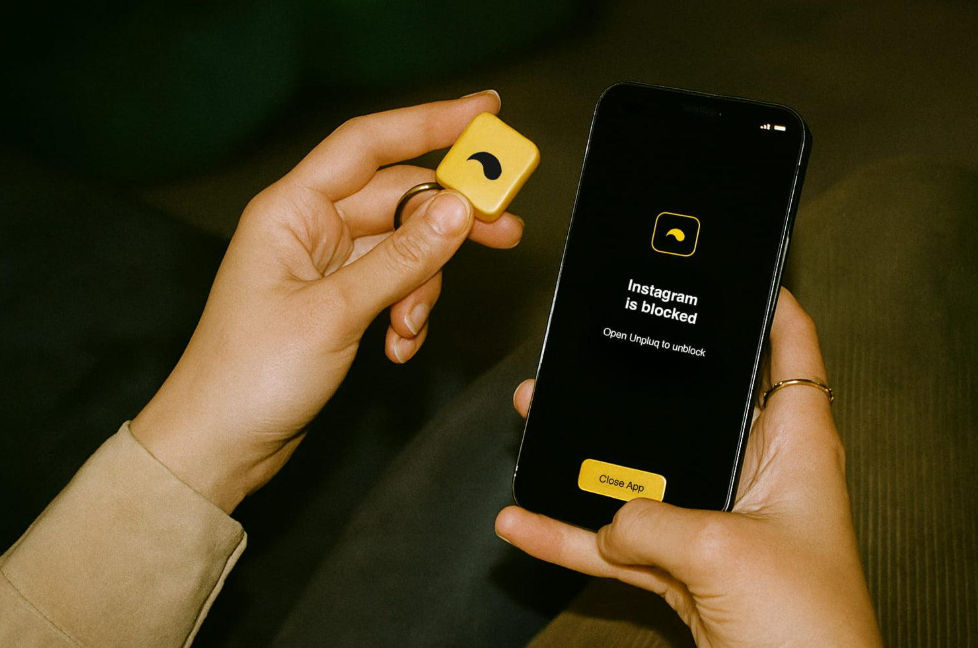

You deleted Instagram. Then, three days later, you reinstalled it “just to check one thing.” Sound familiar?
Here’s the odd part. Blocking Instagram doesn’t need to be strict to work. In a study published in PNAS, a simple 10-second pause before a chosen app opened made people give up on opening it 36% of the time. Over six weeks, actual app opens dropped by 57%.
So the goal isn’t the toughest lock you can find. It’s a block you won’t undo the moment you feel bored.
Below you’ll find step-by-step ways to block Instagram on iPhone, Android, your browser, and your home router. Each method comes with a bypass rating, so you know how easy it is to break.
Quick Takeaways
- iPhone: a 1-minute App Limit plus a Screen Time passcode is the strongest built-in option.
- Android: app timers reset at midnight, and you can delete them in seconds. Focus mode on a schedule holds up better.
- Browser: a site-blocking extension or a hosts file edit stops instagram.com on a laptop.
- Router: blocks Instagram for every device on your Wi-Fi, but not on mobile data.
- Friction often beats a hard wall. Pick the block you won’t undo.
Blocking the App vs. Blocking a Person
Quick check before we start. If you want to block one account, not the whole app, you don’t need any of the settings below.
Open that person’s profile, tap the three dots in the top-right corner, and choose Block. Instagram doesn’t notify them. You can also block them from a DM thread or a comment.
The rest of this guide is about blocking Instagram itself.
How to Block Instagram on iPhone
iPhones don’t have a plain “block this app” switch for third-party apps. Instead, you combine a few Screen Time tools. Done right, this is the toughest built-in setup on any phone.
Set a 1-Minute App Limit
- Open Settings > Screen Time > App Limits.
- Tap Add Limit, open Social, and select Instagram.
- Set the timer to 1 minute (the lowest iOS allows).
- Turn on Block at End of Limit, then tap Add.
Lock It With a Screen Time Passcode
Without a passcode, the limit screen shows an “Ignore Limit” button. That’s not a block. It’s a suggestion.
Go to Settings > Screen Time and set a passcode. Apple’s Screen Time guide explains that the passcode keeps your settings in place. Ask a partner or friend to choose it so you don’t know it.
Block instagram.com in Safari
Blocking the app alone leaves a gap: the website. Close it like this:
- Go to Settings > Screen Time > Content & Privacy Restrictions and turn it on.
- Tap App Store, Media, Web & Games > Web Content.
- Choose Limit Adult Websites, then add instagram.com under Never Allow.
Add Face ID as a Speed Bump
On iOS 18 and later, long-press the Instagram icon and pick Require Face ID. It won’t stop you. It does add a beat of pause, which matters more than it sounds.
The same Screen Time steps work for other apps too. We cover them in our guide to block any iPhone app, and the process mirrors blocking Snapchat on iPhone.
Bypass difficulty: Hard (with a passcode someone else holds). Easy without one, since “Ignore Limit” is one tap away.
How to Block Instagram on Android
Android’s built-in tool is Digital Wellbeing. Samsung phones use their own version, so menu names can differ a little. Search Settings for “Digital Wellbeing” if you can’t find it.
Set an App Timer
- Open Settings > Digital Wellbeing & parental controls.
- Tap Dashboard (or App timers) and find Instagram.
- Tap the timer icon and set the shortest time it allows.
When the timer runs out, the icon grays out. The catch? According to Google’s Digital Wellbeing help, timers reset at midnight, and you can delete one anytime to get back in. Some devices also offer an App limits PIN. Turn it on if you see it.
Use Focus Mode on a Schedule
Focus mode pauses chosen apps and silences their notifications.
- Go to Digital Wellbeing & parental controls > Focus mode.
- Select Instagram.
- Tap Set a schedule and pick your hours (for example, every weekday from 9 to 6).
Watch out for the Take a break button. It lets you unpause apps for a while, and it’s very tempting at 11 p.m.
Bypass difficulty: Easy to Moderate. Timers and Focus mode come off in a few taps. For a firm lock, a parent can use Google Family Link, or you can add a third-party blocker with a strict mode.
How to Block Instagram in Your Browser
If you mostly scroll on a laptop, blocking the app won’t help. You need to block the Instagram website.
Use a Site-Blocking Extension
Free extensions such as LeechBlock NG (Chrome, Firefox, Edge) or BlockSite let you add instagram.com to a blocklist. Many let you set schedules, and some can show a short delay page before the site loads.
Edit Your Hosts File
This blocks Instagram in every browser on the computer, not just one.
- Open your hosts file as an admin. On Windows it’s at C:\Windows\System32\drivers\etc\hosts. On a Mac, run sudo nano /etc/hosts in Terminal.
- Add these lines:
127.0.0.1 instagram.com
127.0.0.1 www.instagram.com
- Save the file, then restart your browser.
Bypass difficulty: Easy (extension) to Moderate (hosts file). Extensions often don’t run in private windows, and another browser skips them entirely. A hosts edit needs admin rights to undo, which adds real friction.
How to Block Instagram on Your Router
A router block covers every phone, tablet, and laptop on your home Wi-Fi at once. That makes it popular with parents.
- Type your router’s address (often 192.168.0.1 or 192.168.1.1) into a browser and log in.
- Find Parental Controls, URL Filter, or Block Sites.
- Add instagram.com and cdninstagram.com, then save.
Router blocks can be patchy, because the Instagram app talks to many servers. A filtering DNS service often works better. CleanBrowsing’s Instagram guide notes that DNS filtering can catch Instagram’s subdomains and content servers, so the app fails to load.
There’s a big hole, though. The moment a phone switches to mobile data, your router has no say. A VPN or private DNS setting on the phone can also slip past it.
Bypass difficulty: Moderate. Strong for younger kids and shared devices. Weak for anyone who knows how to turn off Wi-Fi.
How to Block Instagram at Work
Want to block Instagram at work but keep it for evenings? Use schedules, not full blocks.
On your phone, set Focus mode (Android) or Downtime (iPhone) to cover your work hours. On your work computer, add instagram.com to a blocking extension with the same schedule.
If you manage a team, network-wide blocks are usually set by IT through a firewall or DNS filter. Check your company’s policy first. Blocking sites on a work network without IT’s sign-off can cause more trouble than it solves.
Bypass difficulty: Moderate for self-set schedules. Hard when IT controls the network block (though your phone’s mobile data still gets around it).
What About Instagram’s Own Time Limit?
Instagram has a built-in Daily limit in its settings (look under Time management or Time spent, depending on your app version). It’s better than nothing, but it’s a reminder, not a block. When time is up, you see a notice you can dismiss.
It has also gotten weaker. In 2022, TechCrunch reported that Instagram quietly raised the lowest daily limit from 10 minutes to 30. That’s a lot of runway for a habit you’re trying to shrink.
Bypass difficulty: Very easy. Use it as a nudge, alongside one of the methods above.
Why a Pause Works Better Than a Wall
Here’s what most guides miss. People rarely fail because their block was too weak. They fail because the block felt so harsh that undoing it seemed reasonable.
That PNAS study offers a useful clue. Researchers tested which part of the pause actually worked. The waiting time cut usage. The reflective message on its own didn’t. In other words, a few seconds of friction did more than a reminder to “be mindful.”
That makes sense when you think about how the habit runs. You reach for Instagram on autopilot, often when a task feels hard or boring. A short delay breaks the autopilot just long enough for you to notice. You’ll see the same loop if you’ve ever tried to stop watching YouTube late at night.
This is the idea behind ComfortZoneCheckin. Instead of a locked door, it adds a short check-in at the moment you drift, so the choice is yours again.
You can build the same effect with free tools. Pair Face ID on iPhone with a 1-minute limit, or use a browser extension’s delay page instead of a hard block.
Bypass Difficulty at a Glance
| Method | Works on | Bypass difficulty | Best for |
| iPhone App Limit + passcode | iPhone, iPad | Hard (if someone else holds the code) | Adults with a partner, parents |
| iPhone App Limit, no passcode | iPhone, iPad | Easy | Gentle reminders |
| Android app timer | Android | Easy | Daily caps |
| Android Focus mode schedule | Android | Easy to Moderate | Work hours, evenings |
| Browser extension | Laptop, desktop | Easy | Quick setup |
| Hosts file | Laptop, desktop | Moderate | Blocking every browser |
| Router or DNS filter | Home Wi-Fi | Moderate | Families, shared devices |
| Instagram Daily limit | Instagram app | Very easy | A soft nudge |
Pick the Block You Won’t Undo
There’s no single best way to block Instagram. There’s only the one that fits how you slip.
If you open it on reflex, add friction: a short limit and a passcode you don’t know. If you scroll on your laptop, block the website too. And if you’re setting this up for a family, start with the router, then lock each device.
Try one layer this week. Notice when you reach for the app. That moment of noticing is where the habit starts to loosen.
FAQ
Not with one setting. The closest you’ll get is layering: a 1-minute iPhone limit with a passcode someone else holds, plus a website block. On Android, a parental control tool like Family Link is firmer than Digital Wellbeing. Deleting your account is the only truly permanent option.
Use Screen Time with Family Sharing on iPhone or Google Family Link on Android. Instagram’s own Teen Accounts add supervision tools too. Then add a router or DNS filter at home. It’s a common concern. A 2025 Pew Research survey found that 12% of US teens use Instagram almost constantly.
The research is encouraging. In a University of Bath trial, adults who stopped using social media, including Instagram, for one week reported better well-being and less depression and anxiety than those who kept scrolling.
No. Hiding Instagram in your App Library or a folder only removes the visual cue. That can help a little, since out of sight often means out of mind. But it’s one search away. Combine hiding with a time limit for better results.
Yes. Macs have Screen Time too. Open System Settings > Screen Time > App Limits, add a limit for websites or apps, and tick “Block at end of limit.” Apple’s Mac Screen Time guide walks through it. Pair it with the hosts file method if you use more than one browser.
No. Every method here only stops your device from opening the app or site. Your account, posts, and DMs stay exactly as they were, and everything comes back the moment you lift the block.