The best screen time limit app depends on who is setting the limit. If you’re limiting yourself, pick something you can’t easily undo, like Opal Pro, Freedom, or a Brick. For a child, start with the free tools from Apple or Google, then look at Qustodio or Bark. For a team, choose a tool each person controls, like Freedom for Teams.
Most “best app” lists skip that question entirely. They rank parental-control suites next to productivity blockers as if they solve the same problem. They don’t. A limit you set on yourself fails in a different way from a limit you set on a 12-year-old, and both fail differently from a limit a manager sets for a team.
So this guide is sorted by who sets the limit. Every app gets a price and a bypass-difficulty rating, so you can see how hard each one is to get around.
Quick Takeaways
- Built-in tools are free and fine for gentle nudges, but “Ignore Limit” makes them easy to skip.
- For self-limits, the key feature is a lock you can’t cancel: Opal’s Hard Mode, Freedom’s Locked Mode, or a physical Brick.
- For kids, Apple Screen Time and Google Family Link cover a lot for free. Pay for Qustodio or Bark when you need cross-platform rules or content alerts.
- For teams, avoid tools that enforce limits from the top. Self-managed licenses work better.
- Set limits lower than feels comfortable. Loose limits can backfire.
Why Who Sets the Limit Matters More Than the App
Think about who is on each side of the limit.
- When you limit yourself: the rule-maker and the rule-breaker are the same person, just at different times. Calm, 9 a.m., you set the rule. Tired, at 11 p.m., you want it gone. Economists Allcott, Gentzkow, and Song found in a randomized screen time experiment that letting people limit their future use cut it substantially. Their model linked about 31% of social media use to self-control problems. So for you, bypass resistance isn’t a bonus. It’s the whole point.
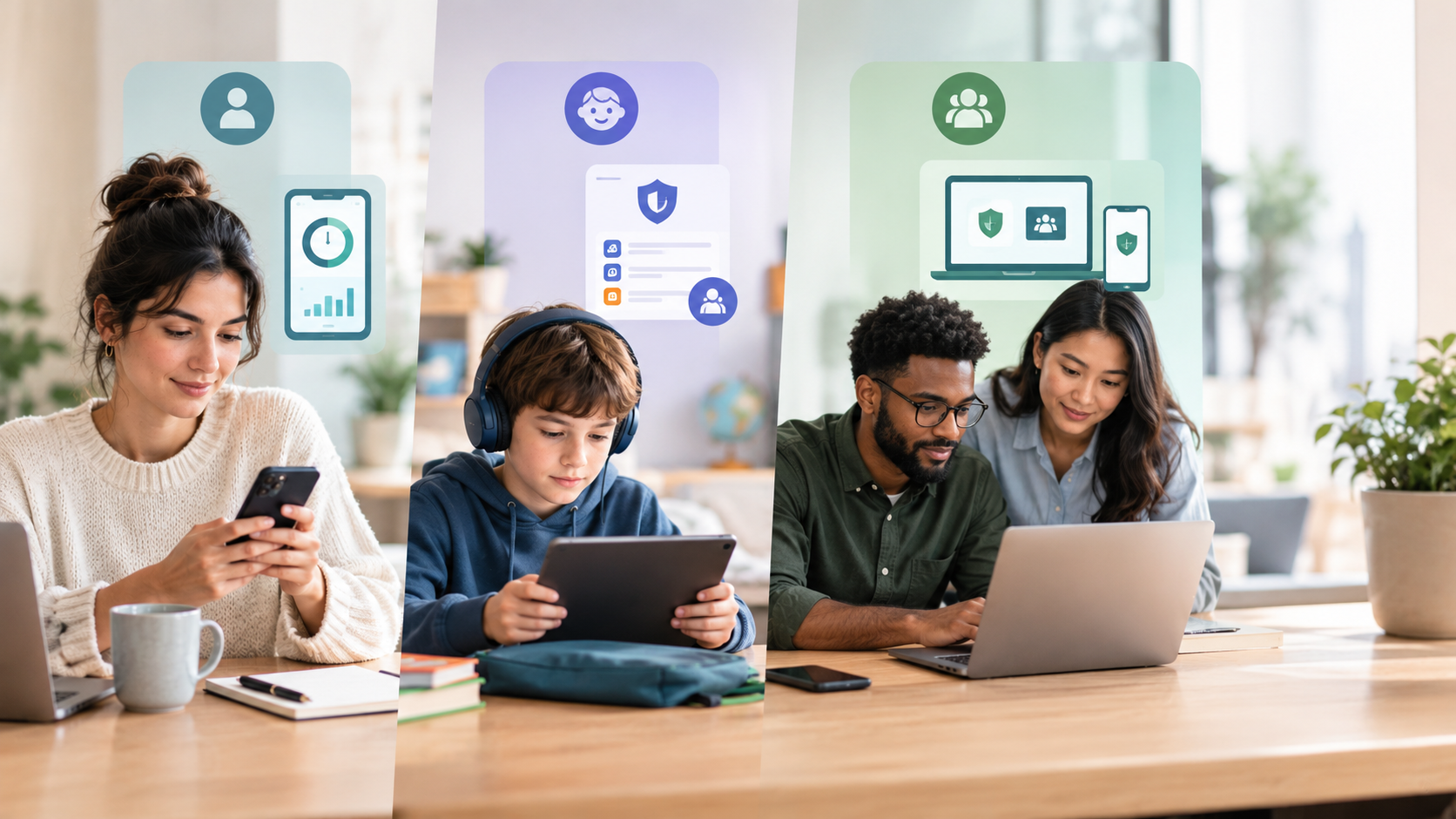
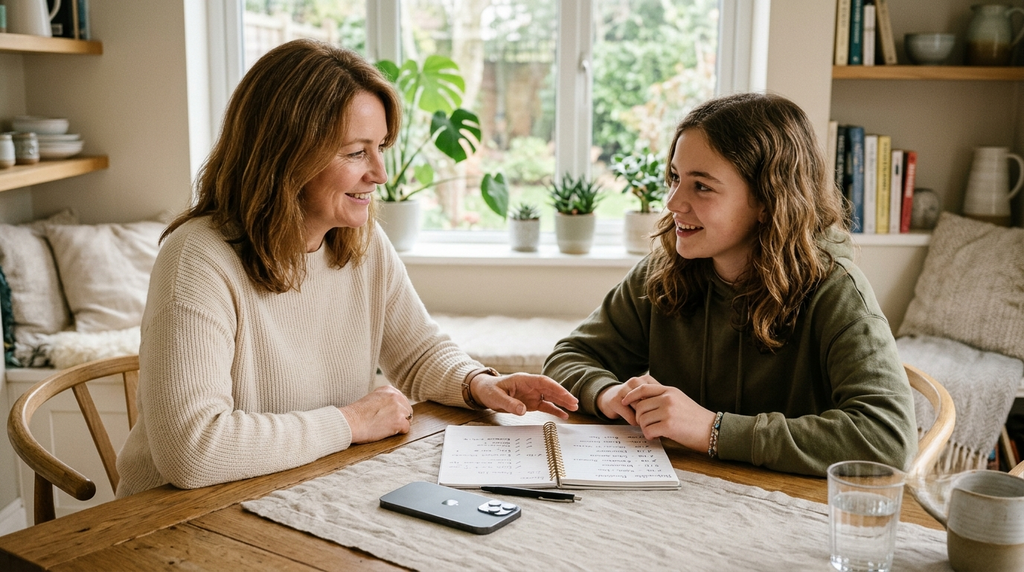
- When you limit a child: the rule-maker and rule-breaker are different people. The risk is a workaround, plus an argument once you find it. The American Academy of Pediatrics suggests a family media plan that you talk through with your kids, with parental controls as one tool inside it. The app backs up the rules. It shouldn’t be the rules.
- When you limit a team: enforcement tends to backfire. Adults resent being policed, and focus is personal. The best team tools give everyone their own license and their own settings.
Same category of app. Three very different jobs.
How We Rated Bypass Difficulty
Every app below gets one of four ratings, based on what it takes to get around a limit once it’s active:
- Low: One tap or a quick settings change ends the limit.
- Medium: You can get around it, but it takes deliberate steps or a short wait.
- High: The app blocks cancelling or uninstalling, or a parent’s approval is needed. Workarounds exist, but they take real effort.
- Very high: Undoing the limit needs something physical or someone else.
No software limit is bypass-proof. These ratings compare apps with each other, not with a locked safe.
Screen Time Limit Apps Compared at a Glance
Prices are US list prices as of October 2026. App store prices can vary by country.
| App | Who sets the limit | Price | Bypass difficulty | Best for |
|---|---|---|---|---|
| Apple Screen Time (self) | Yourself | Free | Low | Gentle nudges on iPhone |
| Android Digital Wellbeing | Yourself | Free | Low | Gentle nudges on Android |
| one sec | Yourself | Free for one app; Pro $19.99/yr | Low by design | Impulse opens |
| Opal | Yourself | Free; Pro $99.99/yr | Medium (free), High (Pro) | Polished scheduling |
| Freedom | Yourself | Free tier; Premium $39.99/yr | High with Locked Mode | Phone plus computer |
| Brick | Yourself | $59 one-time | Very high | People who override software |
| Apple Screen Time + Family Sharing | Your child | Free | High with a passcode | iPhone families |
| Google Family Link | Your child | Free | High | Android families |
| Qustodio | Your child | Free (1 device); paid from about $55/yr | High | Mixed-device families |
| Bark | Your child | Jr $49/yr; Premium $99/yr | Medium to high | Teens who need content alerts |
| Freedom for Teams | Each team member | 10+ licenses, volume pricing | Self-set | Workplaces and classes |
| Opal Teams | Each team member | Contact sales | Self-set | Companies already on Opal |
Apps for Setting Limits on Yourself
Self-limits are the hardest kind to keep, because the person who wants the limit gone has your passcode. Pick based on how often you override.
Apple Screen Time and Android Digital Wellbeing
Price: Free | Bypass difficulty: Low
Both are already on your phone. You can set daily app limits, schedule downtime and check reports. If you’ve never set a limit before, start here. Our guide to blocking apps on iPhone walks through the setup.
The weakness is obvious once you hit a limit. On iPhone, “Ignore Limit” is right there. A Screen Time passcode only helps if someone else holds it.
one sec
Price: Free for one app; Pro $19.99/year or $99.99 lifetime (iOS) | Bypass difficulty: Low, by design
One sec doesn’t block anything. It puts a short pause between you and the app, then asks if you still want to open it. That sounds weak. It isn’t. In a six-week PNAS study, users backed out of 36% of open attempts, and actual openings fell 57%. The delay did the work. The reminder message alone didn’t.
Best for drifters: people who open Instagram on autopilot, not people who fight their own blocks.
Opal
Price: Free (one Rule); Pro $99.99/year | Bypass difficulty: Medium on free, High with Pro
Opal is the most polished blocker on iPhone, and it also runs on Android and Mac. The free plan gives you one schedule, time limit or open limit. Pro adds Hard Mode, which stops you from turning Opal off during a session, plus unlimited Rules and an Allow Only mode. If you keep ending blocks early, Hard Mode is what you’d be paying for.
Freedom
Price: Free tier; Premium $39.99/year, $8.99/month, or a one-time Forever plan | Bypass difficulty: High with Locked Mode
Freedom’s strength is reach. One account blocks apps and sites across Mac, Windows, iOS, Android and Chromebook at the same time, so you can’t just switch to your laptop. Premium adds recurring schedules and Locked Mode, which stops you from ending a session early. It’s the better pick if your problem lives on your computer as much as your phone.
Brick
Price: $59 one time | Bypass difficulty: Very high
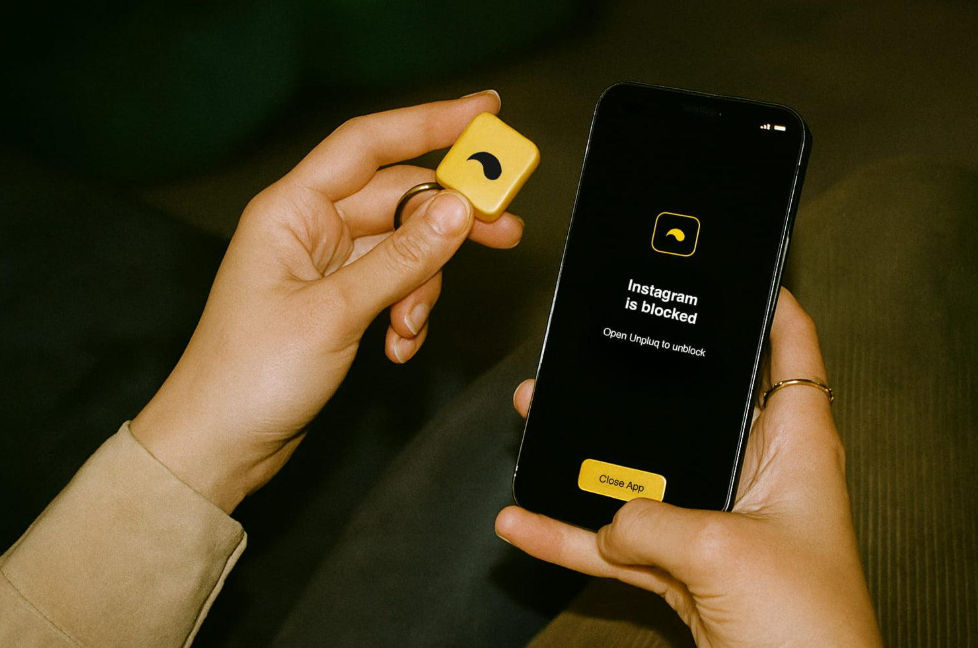
Brick is a small NFC device. You tap your phone on it to lock chosen apps, and you have to tap it again to unlock them. Leave it in another room and the walk does what willpower couldn’t. Reviewers point out that this physical step makes it harder to bypass than any app-only tool. The trade-off is fewer stats and less flexibility.
Apps for Setting Limits on Your Child
With kids, the goal shifts from “stop me” to “set fair rules and make them stick.” Start with what’s free.
Apple Screen Time with Family Sharing
Price: Free | Bypass difficulty: High with a Screen Time passcode
If your child has an iPhone or iPad, add them to Family Sharing and you can manage their Screen Time from your own phone. Set app limits, downtime and content rules. Your child can send you a request for more time, which turns the limit into a conversation rather than a wall.
Set a Screen Time passcode, or the hard blocking options won’t hold. It’s also worth checking that “Block at End of Limit” is still on after you change a limit, since it can quietly switch off.
Google Family Link
Price: Free | Bypass difficulty: High
Family Link is Google’s free tool for Android phones and Chromebooks. You can set daily limits, a device bedtime, and approve or block apps. Under current Google rules, a child under 18 needs a parent’s approval to stop supervision. That makes it much sturdier than it used to be.
Qustodio
Price: Free for one device; paid plans from about $55 a year | Bypass difficulty: High
Qustodio is worth paying for when your family uses a mix of devices. One dashboard covers Android, iPhone, Windows, Mac, Chromebook, and Kindle, with daily limits, schedules, and web filtering. The free plan covers one device. Paid tiers add more devices and, on the top plan, YouTube monitoring and per-app rules. Pricing shifts with promotions, so check current plan details before you buy.
Bark
Price: Bark Jr $5/month or $49/year; Premium $14/month or $99/year | Bypass difficulty: Medium to high
Bark is built around monitoring, so its real strength is alerts for things like bullying or predatory messages. Screen time schedules and site blocking come with both plans, and one subscription covers every child and device. Choose Bark if you have a teen and safety worries matter more than counting minutes.

Apps for Setting Limits Across a Team
Workplace screen limits are rarely about TikTok. They’re about protecting deep work from the steady drip of alerts. The catch is that top-down enforcement feels like surveillance, and people work around it.
Freedom for Teams
Price: Volume pricing for 10 or more licenses | Bypass difficulty: Self-set
Freedom for Teams gives each person a full Premium account on a single invoice. Admins can add and remove members, but they can’t see anyone’s activity or force sessions. Freedom says this is deliberate. Each person sets their own blocks, including Locked Mode if they want it. That’s the right model for adults.
Opal Teams
Price: Contact sales | Bypass difficulty: Self-set
Opal’s Teams plan includes everything in Pro, plus a single invoice and an account manager. It makes sense if several people on your team already use Opal and want Hard Mode on the company card.
A tool won’t fix a culture of instant replies, though. If people block Slack for two hours but still get pinged with “urgent?” on their phone, the block just moves the stress around. Agree on the norms first. Two no-meeting focus blocks a week, an expected reply time for chat, and a clear way to reach someone for a real emergency. Then hand out the licenses. The tool backs up the agreement, the same way it does for a family.
How to Choose a Screen Time Limit App
Ask three questions, in this order.
Who sets the limit?
That tells you which section above to read.
How often does the limit get broken?
Rarely? A free built-in tool or one sec will do. Often? You need High or Very high bypass difficulty: Opal Pro, Freedom with Locked Mode, a Brick, or for kids, a passcode-protected family setup.
Which devices are involved?
iPhone only points to Apple’s tools or Opal. Phone plus laptop points to Freedom. A family full of mixed devices points to Qustodio.
If you want an app-by-app look at more options, our guide to apps to limit screen time covers a wider range.
Mistakes That Make Any Limit App Fail
- Setting the limit too high: Duke professor Jordan Etkin’s research found that time-limit timers often increased time online. Anything under the limit felt fine, so people used up to it. Only tight, well-calibrated limits actually held.
- Picking the app before naming the problem: A hard block doesn’t help if you check your phone out of boredom every few minutes. A gentle pause won’t stop a teen who’s determined to get around it.
- Setting it and forgetting it: The AAP suggests revisiting family rules at the start of each school year and over holidays. Self-limits need the same review.
- Treating the block as the whole fix: Limits stop the behavior. They don’t explain it. Tools like ComfortZoneCheckin focus on spotting the pattern behind the reach, which pairs well with any blocker.
Conclusion
There is no single best screen time limit app. There’s a best app for whoever is setting the limit.
Limiting yourself? Get something you can’t cancel on a bad night. Limiting your child? Use the free tools from Apple or Google first, and pay only when you need more devices or alerts. Limiting a team? Hand out self-managed licenses and set shared norms.
Whatever you pick, set the limit lower than feels comfortable. Then check back in a month.
Frequently Asked Questions
Apple Screen Time on iPhone and Google’s Digital Wellbeing and Family Link on Android are the best free options. They cover app limits, downtime and parental controls at no cost. Their main weakness is that self-set limits are easy to ignore, so add a free tier like one sec or Opal if you keep overriding them.
For limiting yourself, Opal is the most polished iPhone option, and Pro’s Hard Mode stops you from cancelling sessions. For a child’s iPhone, Apple Screen Time with Family Sharing and a passcode is free and hard to bypass.
Sometimes, yes. No software limit is airtight. A Screen Time passcode, Google’s parent-approval rule for stopping supervision, and apps built to resist uninstalling all make it much harder. A clear family agreement makes kids far less likely to try.
Usually not from the top. Enforced limits tend to feel like surveillance. Self-managed tools like Freedom for Teams give each person their own blocks while the company covers the cost.